
Use Guide - 5th Chapter: Problem Solving

Chapter 5 Problem solving 102
Clearing jams
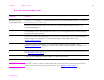
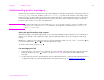
Solving repeated paper jams
Note If paper jams continue, contact your HP-authorized service provider. (See the HP Customer Care
section in the introduce guide on the product CD, or go to www.hp.com/cposupport/.)
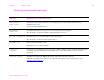
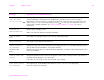
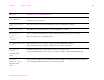
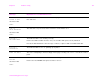
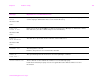
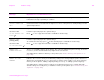
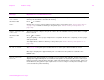
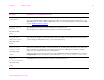
Situation Solution
General repeated
paper jam problems
1. Check to see that paper is correctly loaded in the trays and that all width guides are correctly set
(See “Printing tasks” on page 30).
2. Make sure that the paper tray is set for the size of paper installed and that the tray is not
overloaded with paper.
3. Try turning over the stack of paper in the tray. If you are using prepunched or letterhead paper,
try printing from optional Tray 1.
4. Do not use previously printed paper or torn, worn, or irregular paper. For recommended paper
and other paper for your printer, see the introduce guide on the product CD, or go to
www.hp.com/cposupport/
.
5. Check the paper specifications. (See the introduce guide on the product CD, or got to
www.hp.com/cposupport/
.) If paper is outside of the recommended specifications, problems can
occur.
6. Printer might be dirty. Clean the printer as described in the introduce guide on the product CD, or
go to www.hp.com/cposupport/
.
7. Check that all damaged or jammed paper is removed from printer.