
HP Installation Guide, HP Integrity Superdome/sx2000 and HP 9000 Superdome/sx2000 Servers
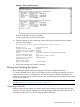

SMS Software and Superdome Firmware Downloading Procedure
Go to the following URL (requires authentication):
http://intranet.hp.com/tsg/WW2/CESL/Pages/SMS-SW-FW.aspx
Select the STSD SMS & FW Files link at approximately mid page.
The Superdome_Binaries.exe file is a self-extracting archive containing the following Firmware
binaries and SMS Software Utilities for Superdome Servers:
1. SX1000 – Last three revisions of PA and IA Firmware
2. SX2000 – Last three revisions of PA and IA Firmware
3. Legacy – Last three revisions of PA Firmware
4. SMS Software Utilities:
— CYGWIN
— EIT
— PARCLI
— SCAN
Either copy the Superdome_Binaries.exe file to the desktop, or save it to a CD.
Open the Superdome_Binaries.exe file.
NOTE: The /opt directory will be created as the default location.
SMS Software Utilities
Move the Software Utilities onto the SMS as indicated:
• SCAN— c:\opt\scansw
• CYGWIN— c:\CYGWIN
• PARCLI— c:\Program Files\Hewlett-Packard\nParCommands
• EIT Tools— c:\Program Files\Hewlett-Packard\EIT
Superdome Firmware Instructions
NOTE: Reference to pa or ia denotes two firmware types: one for PARISC Processors (pa) and
one for Itanium Processors (ia). This is applicable for the sx1000, the sx2000, and the Legacy
Servers. The Legacy Servers will only have the PARISC Processors (pa) installed.
PC SMS
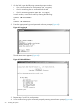
1. Create a c:\opt\firmware\sxX000\X.Xx directory.
Example 1 Directory Example
sx2000\8.7f
2. Copy the h_ipf_(pa or iA)_sxX000_X.Xx tar.gz file to the
c:\opt\firmware\sxX000\X.Xx directory.
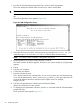
3. Open a Cygwin window.
4. Enter the following command to move that bundle into the targeted directory:
cd c:\opt\firmware\sxX000\X.Xx
5. Enter the following command to un-compress the gzip file:
gunzip h_ipf_(pa or iA)_sxX000_X.Xx.tar.gz
42 Installing the System