
NonStop Development Environment for Eclipse Debugging Supplement
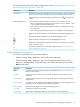
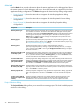
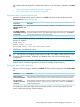
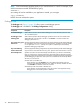
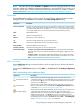
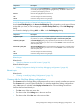

You access this dialog when you click Browse... next to a NonStop project: box, such as in the
Main tab of the Debug Configurations dialog.
DescriptionComponent
Allows you to can constrain the search by typing a name or partial project name in the
box.
Project filter:
Lists the available projects:
• Click the name of the project once to select it.
• Click the name of the project twice to select it and close the dialog.
Choose a project:
Applies your selection and closes the dialog.OK
Closes the dialog without applying your selection.Cancel
Process Browser dialog
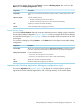
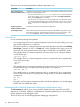
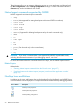
You use the Process Browser dialog to locate and select the process to debug using this NonStop
Process Attach debug configuration. Figure 7 (page 22) shows an example of the Process Browser
for Guardian launch types. Figure 8 (page 22) shows an example of the Process Browser for OSS
launch types.
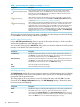
You access this dialog by clicking Browse... in the Main tab of a NonStop Process Attach debug
configuration.
DescriptionComponent
Allows you to restrict the processes listed in Select process to attach: by specifying characters
in the box. Only those processes that include the characters you specify are displayed.
Process filter:
Lists the available processes:
• Click in the row of the process once to select it
• Click in the row of the process twice to select it and close the dialog.
Select process to attach:
Applies your selection and closes the dialog.OK
Closes the dialog without applying your selection.Cancel
Arguments tab (NonStop Application debugging configurations only)
You use the Arguments tab (Figure 3 (page 16)) to specify run command options, program
arguments for remote NonStop applications, and a working directory on the remote system.
Debug Configurations dialog for NonStop debugging configurations 43