
NonStop Development Environment for Eclipse Debugging Supplement
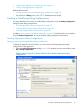
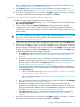
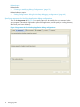
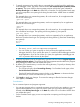
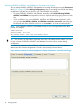
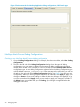

2. The list in the left side of the Debug Configurations dialog shows the types of debug
configurations you can create in addition to the names of debug configurations that have
already been created in this workspace. In this list, double-click the NonStop Application
configuration type. A new debug configuration appears below the debug configuration type
with the default name New_configuration. In the next steps in this procedure, you will use
the tabs on the right side of the Debug Configurations dialog (see Figure 2) to edit your new
configuration. When you finish typing the information for each tab, click Apply to apply your
changes or Revert to revert to the settings in effect the last time changes were applied, or go
on to the next tab and click Apply when you are ready to apply your changes to all tabs. If
the Debug button is available and you click Debug, your changes are applied before the
debugger is launched.
TIP: If you already have configured another NonStop Application debug configuration, you
can copy it and modify the copy to create your new NonStop Application debug configuration.
3. In the Name: box, type a name for this debug configuration, or use the default name,
New_configuration.
4. In the Main tab, configure these settings:
a. For NonStop launch type: select Guardian if your application is a Guardian application
or select OSS if your application is an OSS application.
b. For NonStop project:, specify the NonStop development project that was used to build
the application. Type the name of the project in the box or click Browse... to locate and
select the project using the “Project Selection dialog” (page 42).
c. For NonStop system:, specify the system on which to run the application. Choose a
previously-configured system by selecting a system from the drop-down list, or configure
a new system by clicking Edit... and using the Configure Connections dialog to configure
the remote connection. (For more information about the Configure Connections dialog,
see the NonStop Development Environment for Eclipse User Guide.
d. For NonStop executable's path on NonStop system: specify the path to the executable
file to be debugged on the NonStop system. Type the full path and name of the executable
file, or, if you have selected a system in NonStop system:, you can click Browse... to
locate and select the executable file on that remote system.
e. If you need the executable file from your desktop to the NonStop system before you begin
debugging, in Local executable to be transferred to NonStop path specified above:, type
the full path to the executable file on your local system in the box or click Browse... to
locate and select the file.
5. If you want to specify options to be used by the run command when launching your program,
specify program arguments, or use a working directory other than your home directory, type
the information in the Arguments tab. See “Specifying arguments for NonStop Application
debug configurations” (page 16).
6. If you want to specify environment options, such as ASSIGNs, DEFINEs, or PARAMs for
Guardian applications or environment variables for OSS applications, type the information
in the Environment tab:
• If this is a Guardian launch type, see “Specifying DEFINEs, ASSIGNS, and PARAMs for
Guardian launch types” (page 18).
• If this is an OSS launch type, see “Specifying environment variables for OSS launch
types” (page 19).
7. If you want to specify options for the debugger to use, type the information in the Debugger
tab. See “Specifying debugger options” (page 31).
8. By default, the debugger searches for source files at the path recorded when the application
was compiled. If you need to specify a different location, such as when you have moved the
14 Debugging Tasks