
iTP Secure WebServer System Administrators Guide (Version 7.5+)
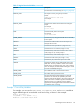



rectangle (x1,y1) (x2,y2) url
This directive defines a rectangle in terms of the upper-left coordinate (x1,y1) and
the lower-right coordinate (x2,y2). For example:
rectangle (30,30) (50,50) /offices/ceo.html
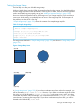
circle (x1,y1) radius url
This directive defines a circle in terms of the center of the circle (x,y) and the radius.
For example:
circle (100,100) 10/target/bullseye.html
polygon (x1,y1) (x2,y2) (x2,y3) ... url
This directive defines a polygon in terms of the vertices of the shape. For example,
a triangular region is defined by:
polygon (0,0) (0,10) (10,10) (0,0) /corner.html
There can be any number of vertices.
default url
This directive defines the default URL that is returned if the selected coordinate does
not match any of the areas in the image map. A default directive is required for
each image map file.
URL Formats
You can specify URLs in image map directives in three different formats: full URL, server-relative
URL, and relative URL.
Full URL
URLs in full format are fully qualified. They include both the method of access and the server name.
For example:
http://www.compedia.com/index.html
ftp://crl.dec.com/pub/misc/
Server-Relative URL
URLs in server-relative format begin with a slash (/) and refer to an object on the server. For
example:
/personal/unerd/home.html
/feedback.cgi
Relative URL
URLs in relative format refer to an object relative to the location of the image map file. For example:
target.html
foundation/index.html
Adding a Hypertext Anchor
The next step is to add a hypertext anchor to the HTML inline image. For example, suppose that
you have an HTML document with an inline image specified as:
<IMG SRC="kellie.gif">
To enable this image as clickable, you would add an ISMAP tag and a hypertext anchor that refers
to the server's image map file. For example:
<A HREF="kellie.map"><IMG SRC="kellie.gif" ISMAP></A>
This specification tells the Web client to enable clicks for kellie.gif and to retrieve kellie.map
if the user clicks anywhere in the image.
128 Configuring the iTP Secure WebServer