
HP iLO 4 Scripting and Command Line Guide
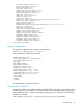
<!-- Add user with minimal privileges to test default setting of
assigned privileges to 'N' -->
<RIBCL version="1.2">
<LOGIN USER_LOGIN="x" PASSWORD="x">
<USER_INFO MODE="write">
<ADD_USER USER_NAME="%username%" USER_LOGIN="%loginname%" PASSWORD="%password%">
<RESET_SERVER_PRIV value="Y" />
<ADMIN_PRIV value="Y" />
</ADD_USER>
</USER_INFO>
</LOGIN>
</RIBCL>
Specify values for the variables when you run HPONCFG by using the substitute option. The
argument must be a string or variable name and value pairs must be separated by a comma (,).
The variable name and its value must be separated by an equal sign (=). For example:
hponcfg /f add_user.xml /s username=testuser,loginname=testlogin,password=testpasswd
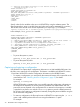
In this example, %host_power% is a variable:
<RIBCL VERSION="2.0">
<LOGIN USER_LOGIN="adminname" PASSWORD="password">
<SERVER_INFO MODE="write">
<!-- Modify the HOST_POWER attribute to toggle power on the host server -->
<!-- HOST_POWER="No" (Turns host server power off) -->
<!-- A graceful shutdown will be attempted for ACPI-aware -->
<!-- operating systems configured to support graceful shutdown. -->
<!-- HOST_POWER="Yes" (Turns host server power on) -->
<SET_HOST_POWER HOST_POWER="%host_power%"/>
</SERVER_INFO>
</LOGIN>
</RIBCL>
• To power the system on, enter:
hponcfg /f Set_Host_Power.xml /s host_power=YES
• To power the system off, enter:
hponcfg /f Set_Host_Power.xml /s host_power=NO
Capturing and restoring a configuration
Use HPONCFG to capture basic configuration information in an XML readable file format. Use
this file to set or restore the iLO configuration. This feature is available with HPONCFG version
1.2 and later. HPONCFG writes the configuration information in the HP RIBCL format.
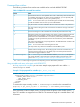
• To capture a configuration, you must specify the name and location of the output file on the
command line. See “Obtaining the basic configuration” (page 27) for details.
For example:
hponcfg /w config.xml
HPONCFG displays a message when it successfully writes the configuration information to
the output file as requested. For security reasons, the default user administrator and user
passwords are not captured in the configuration file or returned in the response. A variable
is provided in its place to use with the substitute option to provide a default password
for all users when restoring a configuration. Manually change the password before using the
file to restore the configuration.
• To restore a configuration, the file must be sent to HPONCFG as input using the /f or -f
option. Add a default password for all users using the substitute or s option.
For example:
30 HPONCFG online configuration utility