
HP iLO 4 Scripting and Command Line Guide
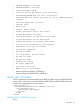
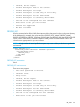
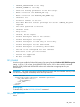


MESSAGE='No error'
/>
<GET_ALL_LICENSES>
<LICENSE>
<LICENSE_TYPE VALUE= "iLO 4 Advanced"/>
<LICENSE_KEY VALUE= "<advanced license key value>"/>
<LICENSE_INSTALL_DATE VALUE="Thu Mar 21 18:47:53 2013"/>
<LICENSE_CLASS VALUE="FQL"/>
</LICENSE>
</GET_ALL_LICENSES>
</RIBCL>
FACTORY_DEFAULTS
Use this command to set the iLO device to factory default settings. Use HPQLOCFG.EXE version
1.00 or later with this command. Replace USER_LOGIN and PASSWORD values with values that
are appropriate for your environment.
WARNING! Resetting an iLO device to factory defaults changes the the DNS name to the default,
and the iLO device can be accessed using only the default Administrator user account and default
password. Without these defaults, iLO access must be reconfigured using the RBSU.
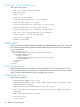
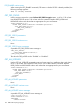
<RIBCL VERSION="2.0">
<LOGIN USER_LOGIN="adminname" PASSWORD="password">
<RIB_INFO MODE="write">
<FACTORY_DEFAULTS/>
</RIB_INFO>
</LOGIN>
</RIBCL>
FACTORY_DEFAULTS parameters
None
FACTORY_DEFAULTS runtime errors
None
IMPORT_SSH_KEY
The IMPORT_SSH_KEY command imports a SSH_KEY and associated iLO user name into iLO. This
command requires HPQLOCFG.EXE version 1.00 or later.
After generating an SSH key using ssh-keygen, puttygen.exe, or another SSH key generating
utility to produce a 1024 bit DSA key, and creating the key.pub file, perform the following:
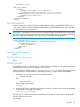
1. Locate the key.pub file and insert the contents between
-----BEGIN SSH KEY----
and
-----END SSH KEY-----.
The file begins with the text:
ssh-dss .
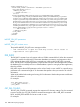
2. At the end of the key, append a space and the name of a valid iLO 4 user name as displayed
on the Modify User page. For example:
xxx_some text_xxx ASmith.
The user name is case-sensitive and must match the case of the iLO 4 user name to associate the
SSH key with the correct user.
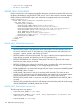
For example:
RIB_INFO 137