
iLO 2 Scripting and Command Line Guide
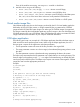
[/xmlverbose or /v][/m firmwarelevel]
| /i [/l filename] [/s namevaluepairs]
[/xmlverbose or /v] [/m firmwarelevel]
| /w filename [/m firmwarelevel]
| /get_hostinfo [/m firmwarelevel]
| /mouse [/dualcursor][/allusers] ]
For more information on using these parameters, see “HPONCFG command line parameters”
(page 67).
Using HPONCFG on Linux servers
Invoke the HPONCFG configuration utility from the command line. HPONCFG displays a usage
page if it is entered with no command line parameters.
The command line format is:
hponcfg -?
hponcfg -h
hponcfg -m minFw
hponcfg -r [-m minFw ]
hponcfg -w filename [-m minFw]
hponcfg -g [-m minFw]
hponcfg -f filename [-l filename] [-s namevaluepairs] [-v] [-m minFw]
hponcfg -i [-l filename] [-s namevaluepairs] [-v] [-m minFw]
For more information on using these parameters, see “HPONCFG command line parameters”
(page 67).
Obtaining the basic configuration
Use HPONCFG to obtain a basic configuration from iLO 2,iLO 3, and iLO 4 by executing the
utility from the command line without specifying an input file. You must provide the name of the
output file on the command line.
For example:
hponcfg /w config.xml
In this example, the utility indicates that it obtained the data successfully and wrote the data to the
output file.
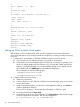
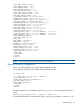
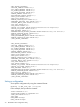
The following is an example of a typical output file:
<!-- HPONCFG VERSION = "1.2" -->
<!-- Generated 07/06/05 09:06:51 -->
<RIBCL VERSION="2.1">
<LOGIN USER_LOGIN="Administrator" PASSWORD="password">
<DIR_INFO MODE="write">
<MOD_DIR_CONFIG>
<DIR_AUTHENTICATION_ENABLED VALUE = "N"/>
<DIR_LOCAL_USER_ACCT VALUE = "Y"/>
<DIR_SERVER_ADDRESS VALUE = ""/>
<DIR_SERVER_PORT VALUE = "636"/>
<DIR_OBJECT_DN VALUE = ""/>
<DIR_OBJECT_PASSWORD VALUE = ""/>
<DIR_USER_CONTEXT_1 VALUE = ""/>
<DIR_USER_CONTEXT_2 VALUE = ""/>
<DIR_USER_CONTEXT_3 VALUE = ""/>
</MOD_DIR_CONFIG>
</DIR_INFO>
<RIB_INFO MODE="write">
<MOD_NETWORK_SETTINGS>
<SPEED_AUTOSELECT VALUE = "Y"/>
68 HPONCFG online configuration utility