
iLO 2 Scripting and Command Line Guide
#
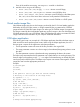
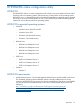
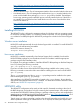
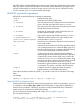
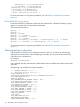
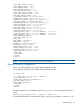
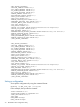
$file = $prefix . "/" . $file;
#
# Decode the range
#
if ($range =~ m/([0-9A-Fa-f]+)-([0-9A-Fa-f]+)/) {
$start = hex($1);
$end = hex($2);
$len = $end - $start + 1;
}
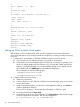
#
# Decode the data (it's a big hex string)
#
$decode = pack("H*", $data);
#
# Write it to the target file
#
sysopen(F, $file, O_RDWR);
binmode(F);
sysseek(F, $start, SEEK_SET);
syswrite(F, $decode, $len);
close(F);
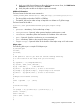
Setting up IIS for scripted virtual media
Before setting up IIS for scripted media, make sure IIS is operational. Use Internet Information
Services (IIS) Manager to set up a simple website and verify that it is working correctly by browsing
to the site.
1. Configure IIS to serve diskette or ISO-9660 CD-ROM images for read-only access.
a. Add a directory to your website and place your images in the directory.
b. Verify that IIS can access the MIME type for the files you are serving. For example, if you
name your diskette images with the extension .img, you must add a MIME type for that
extension. Use the IIS manager to access the Properties dialog of your website. On the
HTTP Headers tab, click MIME Types to add additional MIME types.
HP recommends you add the following types:
.imgapplication/octet-stream
.isoapplication/octet-stream
2. Configure IIS for read/write access.
a. Install Perl (if necessary).
b. Create a directory on your web site to hold the virtual media helper script, and copy the
script to that location.
c. Using the properties page for your directory, under Application Settings, click Create to
create an application directory.
The icon for you directory in IIS manager must change from a folder to a gear.
d. Set Execute Permissions to Scripts Only.
e. Verify that Perl is set up as a script interpreter. Click Configuration on the properties page
to view the application associations. Perl must be configured as
pl c:\perl\bin\perl.exe "%s" %s GET,HEAD,POST.
62 Virtual Media scripting