
iLO 2 Scripting and Command Line Guide


ssh -l loginname ipaddress/dns name
Using PuTTY
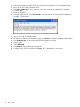
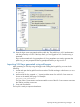
• To start a PuTTY session, double-click the PuTTY icon in directory where PuTTY is installed.
• To Start a PuTTY session from the command line:
To start a connection to a server called host:
putty.exe [-ssh | -telnet | -rlogin | -raw] [user@]host
◦
◦ For Telnet sessions, the following alternative syntax is supported:
putty.exe telnet://host[:port]/
◦ To start an existing saved session called sessionname:
putty.exe -load "session name"
SSH key authorization
SSH key-based authentication enables HP SIM to connect to LOM devices through SSH and be
authenticated and authorized to perform administrative-level tasks. The CLP is utilized to perform
tasks. HP SIM can perform these tasks on multiple LOM devices nearly simultaneously, at scheduled
times. HP SIM provides a menu-driven interface to manage and configure multiple targets.
Enhancements to HP SIM are provided by tool definition files.
HP SIM can perform actions on target devices utilizing an SSH interface that requires private
key-based authentication. If HP SIM is enabled to integrate more fully with LOM devices, SSH
key-based authentication is implemented in iLO 2.
An HP SIM instance will be established as a trusted SSH client by installing its public key in iLO
2. This is completed either manually through a Web-based GUI, or automatically with the
mxagentconfig utility. For more information, see “Mxagentconfig” (page 45).
SSH keys do not need to be created to use SSH in interactive mode. To use SSH in interactive
mode, see “SSH overview” (page 43).
Tool definition files
TDEF files extend the menu system of HP SIM to provide the CLP commands that HPSIM transmits
to iLO 2 through an SSH connection.
44 Secure Shell