
iLO 2 Scripting and Command Line Guide
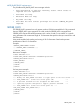
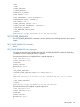
<GET_POWER_READINGS>
<PRESENT_POWER_READING VALUE="275" UNIT="Watts"/>
<AVERAGE_POWER_READING VALUE="278" UNIT="Watts"/>
<MAXIMUM_POWER_READING VALUE="283" UNIT="Watts"/>
<MINIMUM_POWER_READING VALUE="270" UNIT="Watts"/>
</GET_POWER_READINGS>
</RIBCL>
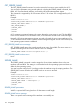
GET_POWER_CAP
The GET_POWER_CAP command is used to get the power cap of the server. For this command
to parse correctly, the GET_POWER_CAP command must appear within a SERVER_INFO command
block, and SERVER_INFO MODE can be set to read or write.
Example:
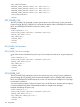
<RIBCL VERSION="2.21">
<LOGIN USER_LOGIN="adminname" PASSWORD="password">
<SERVER_INFO MODE="read">
<GET_POWER_CAP/>
</SERVER_INFO>
</LOGIN>
</RIBCL>
GET_POWER_CAP parameters
None
GET_POWER_CAP return messages
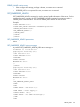
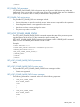
A cap value of zero indicates that a power cap is not currently set on the server. A typical response
is:
<RIBCL VERSION="2.0">
<LOGIN USER_LOGIN="adminname" PASSWORD="password">
<SERVER_INFO MODE="read">
<GET_POWER_CAP />
</SERVER_INFO>
</LOGIN>
</RIBCL>
SET_POWER_CAP
The SET_POWER_CAP command is used to set a power cap on the server. For this command to
parse correctly, the SET_POWER_CAP command must appear within a SERVER_INFO command
block, and SERVER_INFO MODE must be set to write. You must have the configure iLO 2 privilege
to execute this command.
You cannot set this property if a dynamic power cap is set for the server. Dynamic power capping
is set and modified using either Onboard Administrator or Insight Power Manager.
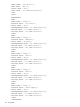
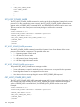
Example of disabling the power cap:
<RIBCL VERSION="2.0">
<LOGIN USER_LOGIN="adminname" PASSWORD="password">
<SERVER_INFO MODE="write">
<SET_POWER_CAP POWER_CAP="300"/>
</SERVER_INFO>
</LOGIN>
136 Using RIBCL