
HP Integrated Lights-Out 2 Management Processor Scripting and Command Line Resource Guide
dualcursor
command line option, along with the mouse option, optimizes mouse handling as suited for
remote console dual-cursor mode. The allusers command line option optimizes mouse
handling for all users on the system. This option is available only for the Windows operating
system.
• /display – Configures Windows display parameters to optimize graphical remote console
display performance.
The options must be preceded by a / (slash) for Windows and Linux as specified in the usage
string.
Example HPONCFG command line:
HPONCFG /f add_user.xml /l log.txt > output.txt
Using HPONCFG on Windows servers
Start the HPONCFG configuration utility from the command line. When using the Windows
operating system, cmd.exe is available by selecting Start>Run>cmd. HPONCFG displays a usage
page if HPONCFG is entered with no command line parameters. HPONCFG accepts a correctly
formatted XML script. For more information about formatting XML scripts, see “Using RIBCL” (page
70). HPONCFG sample scripts are included in the HPONCFG package.
The command line format is:
HPONCFG [ /help | /? | /m firmwarelevel | /reset [/m firmwarelevel]
| /f filename [/l filename] [/s namevaluepairs]
[/xmlverbose or /v][/m firmwarelevel]
| /i [/l filename] [/s namevaluepairs]
[/xmlverbose or /v] [/m firmwarelevel]
| /w filename [/m firmwarelevel]
| /get_hostinfo [/m firmwarelevel]
| /mouse [/dualcursor][/allusers] ]
For more information, see “HPONCFG command line parameters” (page 63).
Using HPONCFG on Linux servers
Invoke the HPONCFG configuration utility from the command line. HPONCFG displays a usage
page if it is entered with no command line parameters.
The command line format is:
hponcfg -?
hponcfg -h
hponcfg -m minFw
hponcfg -r [-m minFw ]
hponcfg -w filename [-m minFw]
hponcfg -g [-m minFw]
hponcfg -f filename [-l filename] [-s namevaluepairs] [-v] [-m minFw]
hponcfg -i [-l filename] [-s namevaluepairs] [-v] [-m minFw]
For more information on using these parameters, see “HPONCFG command line parameters”
(page 63).
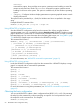
Obtaining the basic configuration
You can use HPONCFG to obtain a basic configuration from RILOE II, iLO, or iLO 2 by executing
the utility from the command line without specifying an input file. You must provide the name of
the output file on the command line. For example:
HPONCFG /w config.xml
64 HPONCFG online configuration utility