
HP iLO Video Player Online Help

HP iLO Video Player 5
o
Open—Opens a video capture file.
o Exit—Closes the iLO Video Player.
• Controls
o Play—Plays or restart the current video capture file.
o Stop—Stop playback of the current video capture file.
o Skip to Start—Restarts playback of the current video capture file.
o Change Speed—Changes playback speed of the current iLO video capture file.
• Help
o Help Topics—Opens the iLO Video Player help file.
o About—Opens the iLO Video Player About page.
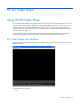
iLO Video Player controls
Control Name Function
Play/Pause Starts playback if the currently selected file is not playing
or is paused. If playback is in progress, it pauses the file.
If no file is selected, the button is disabled.
Stop Stops playback. If no file is selected, the button is
disabled.
Skip to Start Restarts playback from the beginning of the file. If no file
is selected, the button is disabled.
Seek Moves the playback video forward or backward. If no
file is selected, the button is disabled.
Change Speed Changes the playback speed of the currently selected
file. The available playback speeds are 1x, 2x, 4x, 8x,
and 16x. The speeds are cycled through with successive
presses in the following order: 2x, 4x, 8x, 16x, and 1x.
If no file is selected, the button is disabled.
File Position Displays the time parameters of the currently selected file
and appears as in a HH:MM:SS format.
• The left time on the left indicates the current playback
position of the file.
• The time on the right indicates the total playback time
of the file.
Using Console Capture
Console Capture is a Remote Console feature that enables you to record and replay a video stream of
events such as booting, ASR events, and sensed operating system faults. Console Capture is only
available through the iLO 2 user interface and cannot be accessed through XML scripting or the CLP.
Console Capture is a licensed feature available with the purchase of optional licenses. For more
information, see "Licensing (on page 6)".