
HP Intelligent Management Center v7.0 VAN Fabric Manager Administrator Guide


4. Click OK.
If a target switch cannot be found, it is cannot be added to the DC or a fabric. For more
information, see "Importing devices."
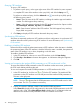
5. Remove undesired devices from the Selected Devices area:
a. Select one more devices.
b. Click Delete. A confirmation dialog box appears.
c. Click OK.
6. Click OK to start the import process. It may take a period of time to import a large number of
switches. After the import process is completed, the details about import time, process, and
result are displayed on the result page. If the process fails, the failure reasons are displayed.
7. Click Back to return to the FCoE switch list.
Synchronizing FCoE switches
With it to synchronize all configurations on FCoE switches to VFM.
To synchronize FCoE switches:
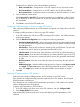
1. In the FCoE switch list, select one or more switches.
2. Click Synchronize. During synchronization, the synchronization status is displayed as
Synchronizing.
3. After a period of time, click Refresh to view the synchronization result. The last synchronization
time is refreshed as the end time of the synchronization. If the synchronization fails, move the
cursor over the link to display a prompt that indicates the failure reason.
Deleting FCoE switches
This task deletes FCoE switches from a fabric, but not from the DC.
To delete FCoE switches:
1. In the FCoE switch list, select one or more switches.
2. Click Delete. A confirmation dialog box appears.
3. Click OK.
Viewing and comparing the global DCBX parameters in VFM and on the FCoE switch
To ensure the global DCBX parameters for the FCoE switch are the latest, synchronize the FCoE
switch before performing this task.
To view and compare the global DCBX parameters in VFM and on the FCoE switch:
1. In the FCoE switch list, click the icon or for the target FCoE switch. The global DCBX
parameters on the FCoE switch are in the left pane of the page. The global DCBX parameters
in VFM are in the right pane of the page.
NOTE: The icon indicates that the global DCBX parameters on the switch and in VFM
are consistent. The icon indicates inconsistency.
2. Display all contents or different contents of the global DCBX parameters.
Select Show All to display all CLI configurations for the global DCBX parameters on the FCoE
switch and VFM. Select Show Different Only to display the CLI configurations that are different
for the global DCBX parameters on the FCoE switch and in VFM.
Fabric management 43