
Insight Environmental Configuration User Guide


Creating a project 96
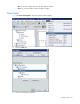
A message window displays any generated warnings or errors.
2. To help correct all warnings and errors, you can highlight the warning or error, and then select
Locate in Plan to automatically be transferred to the object in question.
3. Select Refresh to update the warnings and errors listed.
4. Correct all errors before the project can successfully update the system database.
• Assign all MAC IDs.
• Assign the IP addresses for all gateways that are included in that network.
• Assign the output path for the HP Insight Environmental Imaging Server files.
Exporting the configuration file
After completing the pre-export validation and correcting all errors and warnings, an Expert user can
export the project configuration file to the system database.
1. Change the user level to Expert. For more information on user levels and default passwords, see
Selecting the user level (on page 6).