
Insight Environmental Configuration User Guide






Creating a project 43
The wired rack supports all legacy rack configurations. It is only accessible when the HP Wired Plug-In
has been installed and configured within Device Manager. For more information, see the HP Insight
Environmental Software Installation Guide.
To add a wired rack object to your floor plan:
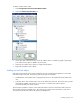
1. Select Configurations>Environmentals>Wired>Racks.
2. Select either the Wired Standard Rack or the Wired Cold Only Rack icon.
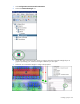
3. On the floor plan, select the rack where the sensors are installed. A new graphic representing the
rack object is added to your floor plan.
4. Select the new rack object to configure the properties for the rack sensor.
5. (Optional) Adjust halos ("Show halos" on page 91).
6. Rotate the rack ("Rotating the rack orientation" on page 85), if necessary.
7. Repeat for all wired rack sensor locations.
Adding a contained rectangle object
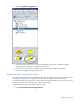
A contained rectangle is a symbolic device used to show areas where hot and cold aisle containment are
in place. A contained area defines a specific area, so that environmental imaging is not shown beyond
the contained rectangle. Using a contained rectangle for contained hot and cold aisles within your data
center produces more realistic and accurate thermal and pressure images.
To add a contained rectangle to your floor plan: