
Insight Environmental Configuration User Guide






Creating a project 10
1.
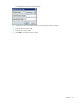
Select File> New project. A window appears with your original background image and the
transparent background image.
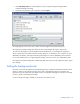
2. Select the transparent floor plan image file, and select Open.
The image appears in the center work window of the HP Insight Environmental Configurator.
HP Insight Environmental Configurator adjusts the size of the background image to 2879 pixels.
To receive the best quality in the HP Insight Environmental Observer, use a background image that is
equal or greater than the smallest resolution used by Observer. For example, if your computers are set to
800x600 pixel displays, then adjust the background image to as close to 800x600 pixels as possible.
If you have multiple zones on a single background image, each zone can be up to 2879x2879 pixels.
HP Insight Environmental Configurator automatically adds white space around images that require aspect
ratio changes.
Setting the background scale
The scale is used with HP Insight Environmental Imaging Server to determine the distance between sensor
objects in relation to the background image. If the scale is changed after objects are placed on the
background, then the object size and relative location are adjusted. Changing the scale does not change
the size or quality of the background image.
If a new background image is loaded into the project, then reset the scale: