
Installing Microsoft Windows on an HP ProBook or EliteBook Notebook PC and creating an image

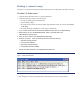
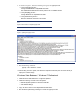
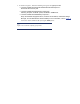


8. As shown in Figure 2, make the following changes to the sysprep.i nf file.
– In the [Unattended] secti on –
Change InstallFilesPath to %SystemDrive%\ i386.
The O em Pn PDr i ver sPa t h sho ul d include paths for all .inf installed drivers.
– In the [SetupMgr] secti o n –
Change Di st Fo l d e r to %SystemDrive%\ i386
– In the [GuiRunO nce] secti o n –
Place the install.bat command in this section
Note
Fi g ur e 2 does not show a complete sy spr ep .i nf file.
Fi g u r e 2. Updating the sy spr ep .i nf file
9. Run the following comma nd:
syspr ep –mini –shutdown –reseal
10. After shutting down the system, use hard-drive duplication software (such as Norton Ghost) to
deploy the common image.
W i nd o w s Vi sta Busi ness / W i nd o w s 7 Pro fessi ona l
1. Instal l W i nd o w s Vi sta Busi ness on a supported platform.
2. Install the following and then reboot the system:
– Essenti a l System Up d a tes fo r W i nd o w s Vi sta SP2
– Vista Default Settings
3. Copy all device drivers to the %SystemDrive%\ DRV folder.
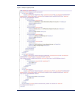
4. Run W indows Sy stem Image M anager to create the sysprep.xml file.