
Installing Microsoft Windows on an HP ProBook or EliteBook Notebook PC and creating an image




A Vista Business license allows you to use either XP Professional or Vista
Business. The W indows 7 Professional license allows you to use W indows
7 Professional, W indows XP Professional or W indows Vista Business.
Note
You can also download HP drivers and utilities – includi ng the most current
BIO S for supported notebook PC models – from the
H P we b si te.
Insta lli ng the O S, drivers, a nd enha ncements
This section provides guidelines for users performing a clean installation of W indows on a supported
HP business notebook PC .
For more information on installing W indows, refer to the Microsoft website a t
http:/ / windows.microsoft.com/ help.
Importa nt
Follow the insta lla tion instructions in the order provided. Fa ilure to complete
these steps in the proper order can result in an unsuccessful or unstable
i ns ta lla tion.
These instructions are independent of the operating system currently
insta lled on the notebook PC .
1. Depending on the particular Internet connection(s) being used, download the driver(s) for the
network interface card and/ or wireless LAN adapter driver. Save to a USB storage device or
optical media.
– C o nta ct your network a d mi ni stra tor to properly set up the networking components of W indows.
2. C hange the boot order in F10 S etup so tha t the optical drive is the first boot device.
3. Boot with the W indows OS recovery disc provided by HP; follow the on-screen instructions for
i nsta lla tion.
– O S recovery media from HP does not require a product ID or key for installation on a
supported HP business notebook PC .
– O lder W indows XP O S media does not include serial ATA (SATA) drivers. For more information
on loading SATA drivers, refer to the white paper, “Insta lling SATA Drivers on HP C ompa q
N otebook PC s.”
– Re ta in the HP_TOOLS pa rti ti on to provide support for HP Q uickLook 2, the F10 Setup graphical
user interface, a nd HP diagnostics. For more information, refer to the white paper, “HP
Business N otebook Computer EFI G uidelines.”
4. Install the appropriate communications driver from the Driver Recovery DVD and configure your
Inte r net connection.
– For W indows XP, install the Microsoft Universal Audio Architecture (UAA) Bus Driver a nd
Essential System Updates, then reboot prior to installing the audio and modem drivers. The
audio driver may require manual installation. (NOTE: The Universal Audio Architecture (UAA)
Bus driver is integrated into XP SP3 and does not need to be installed separately).
5. Install the desired patches from www.microsoft.com/ windowsupdate. Reboot the system after these
patches have been installed.
– For W indows XP, y o u must i nsta ll M ic roso ft Dire c tX 9 a nd possibly Microsoft . N ET Framework.
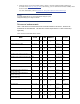
For more information on .NET dependencies, refer to Table 1 below.