
- Hewlett-Packard 17-inch Color Monitor User's Guide



HP 17” Color Monitor User’s Guide
Using Your Monitor
6 English
Adjusting the Quality of the Displayed Image
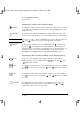
CONTRAST To adjust the contrast (image white level), select this feature. Contrast
is the difference in brightness between the dark and light parts of the
displayed image.
BRIGHTNESS To adjust the overall picture brightness (image black level), use this
feature. Set so that the dark areas of the displayed image remain black.
NOTE You can access the contrast and brightness features directly using the
and controls respectively, and adjusting as required.
DEGAUSS To degauss the monitor, select the DEGAUSS icon and press the
enter key . Degaussing keeps the monitor free from unwanted
magnetism that can result in color impurity. It is recommended that you
degauss at least every week. Degaussing is accompanied by brief
instability of the displayed image and a slight humming sound.
Adjusting the Size, Position and Shape of the Displayed Image
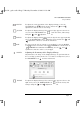
RECALL To revert to the original position, shape and size settings of the
displayed image, select the RECALL icon and use the and
adjustment controls.
H-SIZE To adjust the horizontal size of the displayed image, select the H-SIZE
icon from the menu, and use the and adjustment controls
to resize.
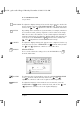
V-SIZE To adjust the vertical size of the displayed image, select the V-SIZE
icon from the menu, and use the and adjustment controls
to resize.
H-POSITION To adjust the horizontal position of the displayed image, select the
H-POSITION icon from the menu, and use the and
adjustment controls to locate the image.
galoo.bk : galoo-us.fb4 Page 6 Monday, November 9, 1998 11:23 AM