
- Hewlett-Packard 17-inch Color Monitor User's Guide



HP 17” Color Monitor User’s Guide
Using Your Monitor
8 English
PARALLELOGRAM To adjust the displayed image if its vertical edges appear to be tilted to
the left or right, select the PARALLELOGRAM icon from the menu,
and use the and adjustment controls to correct the distortion.
ROTATION Depending on the orientation of your monitor, for example, whether it
faces north or south, you may experience some rotation of the image.
This effect is due to the influence of the earth’s magnetic field and is
normal for all monitors. To adjust the displayed image if it appears to be
rotated, select the ROTATION icon from the menu, and use the
and adjustment controls to re-orient the image.
V-LINEARITY To adjust the displayed image if it appears to be compressed at the top
or the bottom, select the V-LINEARITY icon from the menu, and use
the and adjustment controls to correct this effect.
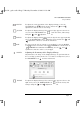
ADVANCED
Advanced Menu
To access the advanced settings, select the ADVANCED icon
from the main menu.
COLOR TEMP. To adjust the tint of your monitor, select the COLOR TEMPERATURE
icon from the advanced menu, and use the and
adjustment controls to achieve the required color temperature.
LANGUAGE To adjust the language of the monitor’s on-screen menu, select the
LANGUAGE icon from the advanced menu, and use the and
adjustment controls to select the required language.
Access Function
Exit Menu
Advanced
galoo.bk : galoo-us.fb4 Page 8 Monday, November 9, 1998 11:23 AM