
Reference Guide ProtectTools Security Manager
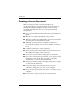
Table Of Contents
- Reference Guide
- Contents
- Introduction
- Smart Card Security for ProtectTools
- Java Card Security for ProtectTools
- Embedded Security for ProtectTools
- BIOS Configuration for ProtectTools
- Credential Manager for ProtectTools
- Glossary
- Index

2–6 Reference Guide
Smart Card Security for ProtectTools
Changing the smart card administrator
password
The smart card administrator password is set as part of the
process for enabling smart card BIOS security mode. You can
change the smart card administrator password after it has been
set. Refer to “Smart card BIOS security mode,” earlier in this
chapter, for more information about the smart card administrator
password.
✎
The following procedure updates the smart card administrator
password stored on the card and in Computer Setup.
To change the smart card administrator password:
1. Select Start > All Programs > HP ProtectTools Security
Manager.
2. In the left pane, select Smart Card Security, and then
select BIOS.
3. In the right pane, under BIOS Security Mode, next to BIOS
administrator card, click Change.
4. Enter the smart card PIN and click Next.
5. Insert the new administrator card and click Next.
6. Enter the smart card PIN and click Finish.