
Power

4–6 Power
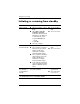
Default power settings
Allow the system
to initiate
hibernation (with
hibernation
enabled).
No action required. If the
computer is running on battery
power, the system initiates
hibernation
■ After 30 minutes of
computer inactivity.
■ When the battery pack(s)
reach a critical low-battery
condition.
✎
Power settings and
timeouts can be changed
using Power Options in
Windows Control Panel.
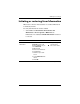
■ The power lights
are turned off.
■ The screen clears.
Restore from
user-initiated or
system-initiated
hibernation.
Slide the power switch toward
the front of the computer.
†
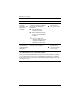
■ The power lights
are turned on.
■ Your work returns
to the screen.
*If you have been registered to a network domain, the button you click will be
called Shut Down instead of Turn Off Computer.
†
If the system initiated hibernation because of a critical low-battery condition,
connect external power or insert a charged battery pack before you slide the
power switch. (The system may not respond if the drained battery pack is the
only power source.)
Task Procedure Result