
Pointing Devices and Keyboard
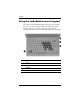


Keyboard
Pointing Devices and Keyboard 2–13
f. To turn off the welcome screen when the presentation
button is pressed, clear the Show welcome screen
when presentation button is pressed check box.
g. To save your preferences and close the control panel,
click Apply and then click OK.
Displaying the Q Menu
The Q Menu provides quick access to many of the system tasks
accessed with the buttons, keys, or hotkeys found on most
computers.
To display the Q Menu on the desktop:
» Right-click the HP Quick Launch Buttons icon and select
Launch Q Menu.
Setting Q Menu preferences
The Q Menu can display up to 40 items. Several system-defined
items are displayed by default. You can choose to display these
items or choose not to display them. Only user-defined items can
be added, modified, and removed.
The items on the Q Menu are managed from the Items to display
on Q Menu list.
Removing a Q Menu item
To remove an item from the Q Menu:
1. In the HP Quick Launch Buttons control panel, click the
Q Menu tab.
2. On the Items to display on Q Menu list, clear the check
box for each item you want to remove.
3. To save your preferences and close the control panel,
click OK.