
Pointing Devices and Keyboard

2–12 Pointing Devices and Keyboard
Keyboard
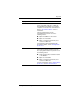
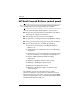
❏ To open a program, folder, file, or Web site when the
button is pressed:
a. Click the down arrow next to the button you want to
set, and then click Presentation.
b. Click the Configure button.
c. In the box under Program to Start, type the name of
the program, folder, or file, or the URL of the Web
site.
– or –
Click Browse to search for available programs,
folders, files, or Web sites, and then click to
select one.
d. To view or change the current power scheme for the
presentation feature, click an option from the Power
Scheme list, or click Power Options to open the
Power Options control panel.
✎
By default the Presentation scheme is selected when
the presentation button is pressed.
e. To select a display setting for the presentation
feature, click Internal Only, Dual Display, or
Extended Desktop.
✎
By default the Internal Only display setting is selected.
When you choose the Extended Desktop setting, you
can select the option that allows the computer to
determine optimal resolution. Click the Allow system
to determine optimum resolution check box, and
then click Apply.
When you select the Extended Desktop setting, you
can select the screen resolution for both the computer
screen and the external monitor. You can alternate
between displays by pressing the presentation button.
If you do this, the power scheme reverts to the original
settings.