
Pointing Devices and Keyboard - Windows Vista

4–4 Pointing Devices and Keyboard
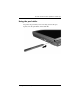
Pen and command controls (Tablet PC models only)
Pressure-sensitivity
The tablet PC pen is equipped with a pressure-sensitive feature.
This means that you can manipulate the pen to create lines of
various thickness, depending upon the amount of pressure you
use to write.
✎
This feature is only available if the Tablet PC Input Panel
software program is enabled.
Calibrating the pen
The pen can function at the default calibration or at a calibration
set by another user. However, HP highly recommends that you
use the pen only while it is calibrated to your personal
handwriting and mouse action motions. Calibration optimizes pen
performance for all users and particularly for left-handed users.
To calibrate the pen:
1. Select Start > Control Panel > Hardware and Sound >
Tablet PC Settings.
2. At the bottom of the General tab, tap the Calibrate button.
3. Follow the instructions on the screen.
❏ Tap the pen in the exact center of each of the calibration
markers. The calibration markers are displayed on the
screen as plus signs (+).
❏ Be sure to calibrate the pen for use in both portrait and
landscape orientations.
✎
You can display information about any setting in the Tablet PC
Settings window by selecting the Help button in the
upper-right corner of the window, and then selecting a setting.