
Pointing Devices and Keyboard - Windows Vista

Keyboard
Pointing Devices and Keyboard 2–17
Setting tiling preferences
To set tiling preferences on the Windows desktop:
1. In the HP Quick Launch Buttons control panel, click the
Quick Tile tab.
2. Click Vertical Tile or Horizontal Tile, and then click the
programs you want to be tiled in the Applications currently
running box.
3. To save your preferences and close the control panel, click
Apply, and then click OK.
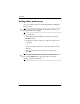
Setting the ambient light sensor
The computer features a built-in light sensor that automatically
adjusts the display brightness based on the lighting conditions in
your environment.
You can turn the ambient light sensor on and off in 2 ways:
■ By pressing fn+f11.
■ By right-clicking the Quick Launch Buttons software icon
in the notification area, at the far right of the taskbar, and
clicking Turn Ambient light sensor on/off.