
Quick Start Guide - HP cc3300 Carrier Grade Server

HP cc3300 Carrier Grade Server 17
Quick Start Guide
Connecting the Monitor, Keyboard, and Mouse
CAUTION:
UNPLUG THE SERVER. Before connecting external devices, make sure
the server is not plugged in, or equipment could be damaged.
Before turning on the server, you must connect these devices to the back of the CC3300 Carrier
Grade server.
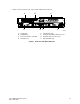
1. Connect a video monitor to the video port (G in Figure 4).
2. Connect the PS/2 Y-cable, provided with the server, to the PS/2 port (J in figure 4).
3. 3. Connect keyboard and a mouse to the PS/2 Y-cable.
Applying Power for the First Time
WARNING
The DC power source may produce hazardous voltage levels exceeding
–72 VDC and high energy levels above 240VA that may cause electric
shock or burns. All DC input connections should be made only by a
qualified service person only to prevent injury. All wiring terminals
connected to the DC input terminal block must be fully insulated with no
exposed bare metal.
The first time you turn the server on you need to enter the BIOS Setup Utility and set the correct
date and time values. After setting these values the server executes its Power-On Self Test (POST)
sequence and passes control to the Boot Manager.
For information on the Boot Manager, refer to the cc3300 Carrier Grade Server System Product
Guide.
Follow these steps to power up the cc3300 Carrier Grade server for the first time:
1. Make sure all external devices, such as a monitor, keyboard, and mouse, have been connected.
2. Plug in the AC power cord or connect the DC power wiring to the back of the chassis (M and E
in Figure 4).
3. Plug the male ends of the server AC power cords into wall outlets (grounded, three-pronged
AC power outlets).
4. Turn on the video monitor.
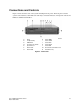
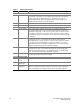
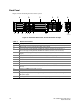
5. Press the Power button on the front panel (D in Figure 2). Pressing this button causes the
server fans to start up and POST to begin.
6. When POST displays the message: “Hit <F2> if you want to run SETUP,” enter <F2> and the
system will enter the BIOS Setup Utility. (If you see a prompt asking for a system password,
pressing the <ENTER> key will get you directly to the BIOS Setup Utility.)