
HP BladeSystem c7000 Enclosure Quick Setup Instructions






14
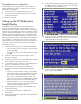
12. Follow the instructions on the Blades Powering Up screen, and
then select Main Menu.
13. Open a browser and connect to the active Onboard
Administrator with KVM module using the Onboard
Administrator with KVM IP address that was configured during
the Insight Display installation wizard process.
14. Enter the user name and password from the tag supplied with the
Onboard Administrator with KVM module to access the remote
Onboard Administrator with KVM web interface and complete
the Onboard Administrator with KVM first time installation
wizard.
To set up the enclosure without network connectivity to the Onboard
Administrator with KVM, see the Onboard Administrator User Guide.
Installing the operating system for
Gen8 servers
ProLiant Gen8 blades do not ship with provisioning media. However,
ProLiant Gen8 blades are preloaded with the media to manage and
install the system software and firmware.
To operate properly, the blade must have a supported operating
system. For the latest information on operating system support, see the
HP website (http://www.hp.com/go/supportos).
To install an operating system on the blade, use one of the following
methods:
• Intelligent Provisioning—The iLO Management Engine is a new
feature on ProLiant blades that contains Intelligent Provisioning
for embedded deployment, updating, and provisioning
capabilities. Intelligent Provisioning can configure the blade and
install an operating system, eliminating the need for SmartStart
CDs and Smart Update Firmware DVDs.
To install an operating system on the blade with Intelligent
Provisioning (local or remote):
a. Ensure network connectivity and power on the blade.
b. Through a remote control session, during server POST, press
the F10.
c. Complete the initial Preferences and Registration portion of
Intelligent Provisioning.
d. At the Home screen, click the Configure and Install button.
e. Follow the on-screen prompts to finish the installation. (To
update the firmware and systems software, an Internet
connection is required.)
• Remote deployment installation—Use Insight Control server
deployment for an automated solution to remotely deploy an
operating system.
For additional system software and firmware updates, download the
HP Service Pack for ProLiant (SPP) from the HP website
(http://www.hp.com/go/spp/download).
The Smart Update Firmware DVD ISO is also available at the
download tab on the HP website
(http://www.hp.com/go/foundation).
For information on using these installation methods, see the HP website
(http://www.hp.com/go/ilo).
Installing the operating system for
G7 servers
To operate properly, the server must have a supported operating
system installed. For the latest information on supported operating
systems, see the HP website (http://www.hp.com/go/supportos).
Methods to install an operating system on the server include:
• SmartStart assisted installation—Insert the SmartStart CD into the
DVD-ROM drive and reboot the server.
• Manual installation—Insert the operating system CD into the
DVD-ROM drive and reboot the server. You might have to obtain
additional drivers and firmware from the SPP download site
(http://www.hp.com/go/spp/download).
For more information, download the HP Service Pack for ProLiant (SPP)
from the HP website (http://www.hp.com/go/spp/download).
Troubleshooting resources
The HP BladeSystem c-Class Enclosure Troubleshooting Guide
provides procedures and solutions for troubleshooting HP BladeSystem
c-Class enclosures. This guide explains how to use the Insight Display
to troubleshoot enclosures, and it includes a flowchart to help you
navigate the troubleshooting process. To view the guide, see the HP
website
(http://www.hp.com/support/BladeSystem_Enclosure_TSG_en).
Before contacting HP Technical Support, be sure to have an Onboard
Administrator Show All report available. HP Technical Support must
analyze the Onboard Administrator Show All report for configuration
errors before proceeding. For instructions on how to create an
Onboard Administrator Show All report, see the HP website
(http://h20000.www2.hp.com/bizsupport/TechSupport/Document.
jsp?lang=en&cc=us&objectID=c02843807).
For more information
Refer to the HP website
(http://www.hp.com/go/bladesystem/documentation) for more
detailed setup and configuration information as well as regulatory,
safety, and environmental notices. This information can be found in the
HP BladeSystem c-Class Solution Overview and the HP BladeSystem
c7000 Enclosure Setup and Installation Guide.