
How to Enable LDAP Directory Services Authentication to Microsoft Active Directory in the HP cClass Onboard Administrator

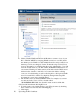
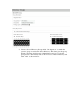
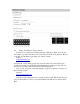


b. Click to Enable LDAP and enter in the IP address or name of one of your
DC’s. This DC MUST be accepting LDAP connections over SSL (636 is
the default port for LDAP over SSL in MS AD and it could possibly be an
alternate port if it was changed). See the Troubleshooting section (below)
for more information on verifying that this works. Alternatively, you could
enter the domain name of your AD domain (DOMAIN.COM) instead of a
server name. Entering a domain name by itself will cause the DNS servers
defined for the domain to offer DC’s in a round robin fashion offering
some sort of load balancing as well as allowing OA to still login in LDAP
users if a certain DC is offline. For simplicity during initial setup, HP
recommends you use just a single IP address.
c. The Search Context is standard LDAP Format. For example, if your user
accounts are in the “Users” OU in a domain called
“BLADEDEMO.HP.COM”, the Search Context would look like this:
CN=Users,DC=bladedemo,DC=hp,DC=com
d. You may want to also add the ability to use NT style names by checking
the box titled “Use NT Account name Mapping”.
e. Click Apply
IV. Uploading the DC Certificate