
HP 9000 rp8420 Server - User Service Guide, Fifth Edition


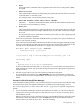
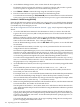
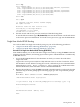

2. At the EFI Boot Manager menu, select an item from the boot options list.
Each item in the boot options list references a specific boot device and provides a specific
set of boot options or arguments to be used when booting the device.
3. Press Return or Enter to initiate booting using the selected boot option.
4. Exit the console and service processor interfaces if finished using them.
To exit the EFI environment type ^B (Control-B); this exits the nPartition console and returns
to the service processor Main Menu. To exit the service processor, type X at the Main Menu.
Procedure E-3 HP-UX Booting [EFI Shell]
From the EFI Shell environment, to boot HP-UX on a device first access the EFI System Partition
(for example fs0:) for the root device and then enter HPUX to invoke the loader. The EFI Shell
is available only on HP Integrity servers.
See “ACPI Configuration for HP-UX Must Be “default”” (page 196) for required configuration
details.
1. Access the EFI Shell environment for the nPartition on which you want to boot HP-UX.
Login to the service processor (MP or GSP) and enter CO to access the Console list. Select
the nPartition console.
When accessing the console, confirm that you are at the EFI Boot Manager menu (the main
EFI menu). If at another EFI menu, select the Exit option from the sub-menus until you
return to the screen with the EFI Boot Manager heading.
From the EFI Boot Manager menu, select the EFI Shell menu option to access the EFI Shell
environment.
2. At the EFI Shell environment, issue the acpiconfig command to list the current ACPI
configuration for the local nPartition.
On nPartition-capable HP Integrity servers, to boot the HP-UX operating system an nPartition
must have its ACPI configuration value set to default. If the acpiconfig value is not set
to default, then HP-UX cannot boot; in this situation you must reconfigure acpiconfig
or else booting will be interrupted with a panic when launching the HP-UX kernel.
To set the ACPI configuration for HP-UX: at the EFI Shell interface enter the acpiconfig
default command, and then enter the reset command for the nPartition to reboot with
the proper (default) configuration for HP-UX.
3. At the EFI Shell environment, issue the map command to list all currently mapped bootable
devices.
The bootable filesystems of interest typically are listed as fs0:, fs1:, and so on.
4. Access the EFI System Partition (fsX: where X is the filesystem number) for the device
from which you want to boot HP-UX.
For example, enter fs2: to access the EFI System Partition for the bootable filesystem number
2. Note that the EFI Shell prompt changes to reflect the filesystem currently accessed.
Also note that the filesystem number may change each time it is mapped (for example, when
the nPartition boots, or when the map -r command is issued).
5. When accessing the EFI System Partition for the desired boot device, issue the HPUX command
to invoke the HPUX.EFI loader on the selected devive.
The full path for the loader is \EFI\HPUX\HPUX.EFI and when invoked it references the
\EFI\HPUX\AUTO file and proceeds to boot HP-UX using the default boot behavior specified
in the AUTO file.
You are given ten seconds to interrupt the automatic booting of the default boot behavior.
Typing a key during this ten-second period stops the HP-UX boot process and enables you
to interact with the HPUX.EFI loader. To exit the loader (the HPUX> prompt) type exit to
return to the EFI Shell.
To boot the HP-UX operating system, do not type anything during the ten-second period
given for stopping at the HPUX.EFI loader.
198 Operating System Boot and Shutdown