
HP 9000 rp8420 Server - User Service Guide, Fifth Edition
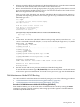
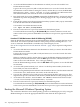
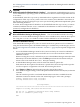
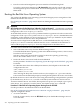

1. Access the BCH Main Menu for the nPartition on which you want to boot HP-UX in
LVM-maintenance mode.
Login to the service processor (MP or GSP) and enter CO to access the Console list. Select
the nPartition console. When accessing the console, confirm that you are at the BCH Main
Menu (the Main Menu: Enter command or menu> prompt). If at a BCH menu other
than the Main Menu, then enter MA to return to the BCH Main Menu.
2. Boot the desired device using the BOOT command at the BCH interface, and specify that the
nPartition stop at the ISL prompt prior to booting (reply y to the “stop at the ISL prompt”
question).
3. From the ISL prompt, issue the appropriate Secondary System Loader (hpux) command to
boot the HP-UX kernel in the desired mode.
To boot HP-UX in LVM-maintenance mode:
ISL> hpux -lm boot /stand/vmunix
4. Exit the console and service processor interfaces if finished using them.
To exit the BCH environment type ^B (Control-B); this exits the nPartition console and
returns to the service processor Main Menu. To exit the service processor, type X at the Main
Menu.
Procedure E-7 LVM-Maintenance Mode HP-UX Booting [EFI Shell]
From the EFI Shell environment, boot in LVM-maintenance mode by stopping the boot process
at the HPUX.EFI interface (the HP-UX Boot Loader prompt, HPUX>) entering the boot -lm
vmunix command. The EFI Shell is available only on HP Integrity servers.
See “ACPI Configuration for HP-UX Must Be “default”” (page 196) for required configuration
details.
1. Access the EFI Shell environment for the nPartition on which you want to boot HP-UX in
LVM-maintenance mode.
Login to the service processor (MP or GSP) and enter CO to access the Console list. Select
the nPartition console.
When accessing the console, confirm that you are at the EFI Boot Manager menu (the main
EFI menu). If at another EFI menu, select the Exit option from the sub-menus until you
return to the screen with the EFI Boot Manager heading.
From the EFI Boot Manager menu, select the EFI Shell menu option to access the EFI Shell
environment.
2. Access the EFI System Partition (fsX: where X is the filesystem number) for the device
from which you want to boot HP-UX.
3. When accessing the EFI System Partition for the desired boot device, issue the HPUX command
to invoke the \EFI\HPUX\HPUX.EFI loader on the selected device.
4. Type any key within the ten seconds given for interrupting the HP-UX boot process. This
stops the boot process at the HPUX.EFI interface (the HP-UX Boot Loader prompt, HPUX>).
5. At the HPUX.EFI interface, enter the boot -lm vmunix command to boot HP-UX (the
/stand/vmunix kernel) in LVM-maintenance (-lm) mode.
6. Exit the console and service processor interfaces if finished using them.
To exit the EFI environment type ^B (Control-B); this exits the nPartition console and returns
to the service processor Main Menu. To exit the service processor, type X at the Main Menu.
Booting the Microsoft Windows Operating System
You can boot the Windows Server 2003 operating system on an HP Integrity server by using the
EFI Boot Manager to select the appropriate Windows item from the boot options list.
202 Operating System Boot and Shutdown