
HP 9000 rp8420 Server - User Service Guide, Fifth Edition
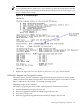
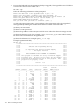
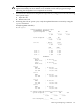
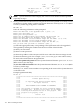
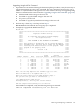
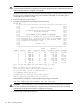

Enter the Entities to be upgraded (Ex: 2,4,7) : 15
Enter your user name: anonymous
Enter your user password: ********
Enter the ip address where the FPGA image file can be found: 192.1.1.1
Enter the path where the file(s) can be found: /dist/versionX_X
Enter PDHC FPGA image filename: pdhc_X.X.X.osp (Refer to Note (3) in this step)
Are you sure that you want to continue(Y/N): y
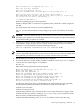
**** Updating PDHC FPGA ****
Firmware updating progress will be reported.
NOTE (1): When a SEU is connected to an rp8420 system, cabinet id 8 will be assigned to
the SEU.
(2): These entities will only be seen on the rp8420.NOTE
(3): X.X.X is the version number corresponding to the version of the FPGA on the other
cells.
CAUTION: DO NOT RESET the cell or server unless you have received confirmation that
the FPGAs were updated successfully. Repeat the firmware update procedure immediately
for all entities failing to update successfully.
2. Verify that you have received confirmation that the FPGA was updated successfully. If any
entity failed to update properly do not continue until the entity have been successfully
updated. A successful update returns the following message:
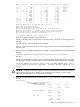
OSP has completed successfully for all selected FPGAs.
NOTE: FPGAs updated in step 4 will not show the updated version when running the
sysrev command until after the next AC cycle of the cell. Once ALL firmware images have
been updated, you will be instructed to AC cycle the cell later in this procedure.
3. Do not reset the Cell until the next step (step 4) is completed.
4. Execute the Firmware Update Utility to update Cell PDHC version (s) to A.X.X.X (Refer
to Note (1) in this step) using the fw command:
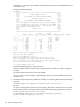
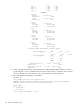
MP:CM> fw
Enter the following information when prompted:
Enter the Entities to be upgraded (Ex: 3,4,10): (1)
Enter your user name: (2)
Enter your user password: (3)
Enter the ip address where the firmware can be found: (4)
Enter the path where the firmware can be found: (5)
Enter the filename of the firmware image for the PDHC: (6)
Enter the filename of the System Firmware image: (7)
Enter the filename of the firmware image for the MP: (8)
Are you sure that you want to continue (Y/N): y
(1) Select the appropriate entity corresponding to the replacement cell to be upgraded /
downgraded by entering the number from the first column of the FW table.
(2) Enter your user name.
(3) Enter account password.
(4) Enter the ip address of the anonymous FTP server where the firmware images reside.
(5) Enter the directory path. For example: /dist/versionX_X (or some other location).
Do not list the actual firmware image filename.
(6) Enter the PDHC filename: pdhc_A.X.X.X.bin (Refer to Note (1) in this step).
Removing and Replacing a Cell Board 123