
Switch 7700 Configuration Guide, v2

Setting Terminal Parameters 9
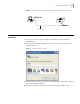
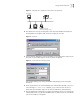
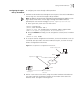
Figure 7 Setting up the Configuration Environment Through Telnet
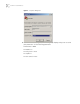
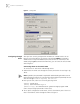
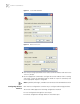
4 Run Telnet on the PC by selecting Start > Run from the Windows desktop and
entering Telnet in the Open field, as shown in
Figure 8. Click OK.
Figure 8 Run Telnet
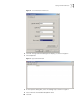
5 On the Connect dialog box, enter the IP address of the VLAN connected to the PC
port and set the terminal type to VT100, as shown in
Figure 9.
Figure 9 Connect Ethernet Switch by Telnet
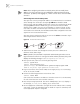
The terminal displays User Access Verification and prompts you for the logon
password.
6 Enter the password,. The terminal displays the command line prompt (<SW7700>).
If the message, Too many users! appears, try to reconnect later. At most, 5
Telnet users are allowed to log on to the Switch 7700 Switch simultaneously.
7 Use the appropriate commands to configure the Ethernet switch or to monitor the
running state. Enter
? to get the immediate help. For details of specific commands,
refer to the chapters in this guide.
Workstation
WorkstationServer
Ethernet port
PC (for configuring
the switch through Telnet)