
HP PCIe IO Accelerator for ProLiant Servers

Software Installation 19
Existing PCIe IO Accelerator Installation
To install the latest PCIe IO Accelerator Windows software on an existing installation,
complete the steps under Hardware Installation if you also installed a new PCIe IO
Accelerator to the existing installation.
Review the Release Notes document available for this version of the software for additional
steps that may be needed to complete the install.
Log in as Administrator or have Administrator rights.
Uninstall the existing driver, utilities, etc., using Programs, or Add or Remove Programs
(depending on your version of Windows), in the Control Panel.
Restart the server.
NOTE: The installation program does not remove previous versions of the software. If a
previous version is removed after the newest version is installed, the driver will no
longer load after a restart. In that case, you need to a) run the Repair option in the
installation program, from Programs and Features (or Add or Remove Programs) in the
Control Panel, and b) restart the server.
Download the PCIe IO Accelerator installation program for Windows
from http://www.hp.com/support
to your desktop or a convenient directory.
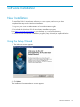
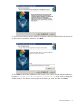
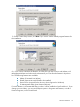
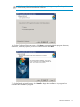
Run the PCIe IO Accelerator installation program. See Using the Setup Wizard in the New
Installation section for details.
Proceed to the Checking for Outdated or Old Firmware section to continue:
Checking for Outdated or Old Firmware
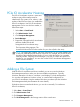
To check for outdated firmware, launch the PCIe IO Accelerator Management Tool
and look for any devices that have a warning symbol next to the device name.
Click on any devices with a warning symbol to ensure that the alert is from outdated firmware.
Select all devices requiring firmware update and use the Management Tool to update the
firmware. Refer to the PCIe IO Accelerator Management Tool User guide for details.
To check for old (but not outdated) firmware, find the name of the latest firmware
version as noted in the Release Notes.
Use the PCIe IO Accelerator Management Tool to check each PCIe IO Accelerator's firmware
version against the latest.
Refer to the PCIe IO Accelerator Management Tool User Guide for instructions on how to
update the firmware.