
HP PCIe IO Accelerator for ProLiant Servers User Guide


Windows Server environments 57
Windows Installer logging options
The Windows® Installer handles its installations through Msiexec.exe. The logging command is issued
with the /L parameter. Options are indicated with an asterisk. For example, the following command turns
on logging with verbose output (*v):
msiexec /i "C:\MyPackage\Example.msi" /L*V "C:\log\example.log"
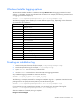
The following logging options enable you to create different types of logs, depending on the information
you need about the installation.
Option Description
*a Startup of actions
*c Initial UI parameters
*e All error messages
*i Status messages
*m Out of memory or fatal exit information
*o Out-of-disk-space messages
*p Terminal properties
*r Action-specific records
*u User requests
*v Verbose output
*w Nonfatal warnings
*x Extra debugging information
*+ Append to existing log file
*! Flush each line to the log
** Log all information except for v and x options
Creating an installation log
1. Determine the path of the MSI file (for example, C:\MyPackage\Example.exe).
2. Decide the path of the log (for example, C:\log\example.log).
3. Open cmd.exe. You can use any command shell.
4. Use the msiexec command line to launch the MSI with logging parameters.
Any installation logging command line must have this form:
msiexec /i <path_to_msi> /L*V <path_to_log>
The following is a sample command for creating the installation log. The /i parameter launches the MSI
package. Be sure to specify the actual paths to your MSI file and log file.
msiexec /i "C:\MyPackage\Example.msi" /L*V "C:\log\example.log"
If you want the log to be created next to the MSI, you can specify only the name of the log file:
msiexec /i "C:\MyPackage\Example.msi" /L*V "example.log"
After the installation is finished, the log is complete.
Using an .exe bootstrapper