
HP PCIe IO Accelerator for ProLiant Servers User Guide

Windows Server environments 45
7.
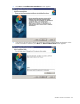
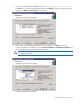
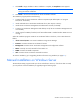
Click Install to begin installation. When installation is complete, the Completion screen appears.
NOTE: You might be prompted to stop installation and start the Microsoft® SNMP service
during the software installation.
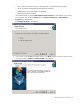
8. Click Finish to exit the Wizard and launch the IO Accelerator software.
The installation program performs the following:
• Creates a folder for the IO Accelerator software components (the default path is C:\Program
Files\HP IO Accelerator).
• Installs and loads the IO Accelerator Windows® driver. (This requires a reboot.)
• Installs the IO Accelerator Management Tool administrator console (if selected).
• Creates an IO Accelerator Management Tool desktop icon (if the IO Accelerator Management Tool
was installed).
• Installs support for SNMP (if installed, and if Microsoft® SNMP is installed and the SNMP service is
running).
When the installation program creates the IO Accelerator folder on the drive, it also creates these sub-
folders:
• <driver version>\Driver—For manual installations using Device Manager
• Firmware—Contains the latest IO Accelerator firmware
• Management—Contains the IO Accelerator management and configuration software
• SMI-S—Currently not used; reserved for future SMI-S use
• SNMP—Contains the SNMP components
• Utils—Contains the IO Accelerator command line utilities
To continue installation, go to "Upgrading the device firmware using Windows (on page 47)."
Manual installation on Windows Server
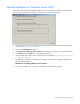
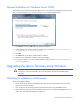
The Windows® Setup program installs your driver and software. However, if the driver does not install,
you can perform a manual installation (or upgrade) using the following steps.