
HP 3PAR Service Processor Software 4.1.x Release Notes (QR482-96666)





7 Service Processor Software 4.1.0 P003, 4.1.0 MU1
P004, and 4.1.0 MU2 P005 Releases (Optional)
What’s New in the Service Processor
The SP-4.1.0.GA-60.P003, SP-4.1.0.GA-78.P004, and SP-4.1.0.GA-97.P005 patches are optional
patches that provide an update for the HP 3PAR Service Processor when running remote operations.
These patches are available as physical media or as self-install packages for deployment to Secure
Network Mode devices (available internally to HP only).
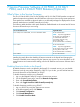
The following table describes which patch should be installed based on the current level of Service
Processor software that you are running.
Applicable PatchCurrent SP Software Level
SP-4.1.0.GA-60.P003
NOTE: If you have upgraded to
SP-4.1.0.GA, 4.1.0.GA+P001, or
4.1.0.GA+P001+P002 from
2.5.2.GA-11+P001 by using
SP-2.5.2.GA-11.410,
SP-4.1.0.GA-60.P003 is mandatory.
SP 4.1.0 GA, SP 4.1.0 GA+P001, or SP 4.1.0 GA+P001+P002
SP-4.1.0.GA-78.P004
NOTE: If you have upgraded to
SP-4.1.0 MU1 from 2.5.2.GA-11+P001
by using SP-2.5.2.GA-11.411,
SP-4.1.0.GA-60.P004 is mandatory.
SP 4.1.0 MU1
SP–4.1.0.GA-97.P005SP 4.1.0 MU2
Installing this patch allows the disabling of Permissive Mode on the firewall and changing the
Customer Controlled Access settings using the 3parcust user account. For more information on SP
control functions and communication settings, see the HP 3PAR Service Processor Software User’s
Guide.
Disabling Permissive Mode on the Firewall
By default, Permissive node is enabled for the firewall. For increased security, you can disable
Permissive mode by using either SPMAINT or SPOCC. If you do this, you must add at least one
host to the firewall to access SPMAINT or SPOCC.
To disable Permissive mode by using SPMAINT:
1. Log in to the SPMAINT utility by using the 3parcust user account.
2. On the SPMAINT home page, enter 2 for Network Configuration.
3. Enter 3 for Firewall Manipulation.
4. Enter 6 for Toggle Permissive Public Firewall (currently On).
To disable Permissive mode by using SPOCC:
1. Log in to SPOCC by using the 3parcust user account.
2. In the left navigation pane, click SPMaint.
3. Click Network Configuration.
4. Click Firewall Manipulation.
5. Click Disable Permissive Mode.
What’s New in the Service Processor 21