
HP 3PAR Recovery Manager Diagnostics Tool for Hyper-V User Guide (QL226-97315, February 2014)


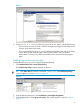

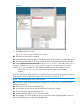

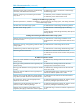
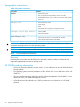

Figure 5
4. Assign Log on as a service to the service account on your system, and do the following:
• If your system is a node in a cluster—Check if user rights are assigned to the cluster service
account on all nodes in the cluster.
• If user rights already assigned—If you have already assigned the user right to the cluster
service account, and if the user right is removed, then confirm with your domain
administrator if a Group Policy object associated with this node can be removing the
rights.
Adding Log on as a service right
To manually add Log on as a service right, perform the following:
1. Click Administrative Tools→Local Security Policy.
The Local Security Policy windows appears, as shown in .
TIP: Click Start→Run and enter the command secpol.msc. The Local Security Policy
windows appears, as shown in Figure 6 (page 15).
Figure 6
2. From the left navigation pane, click Local Policies→User Rights Assignment.
3. From the details pane, click Log on as a service. The window appears, as shown in Figure 7
(page 16)
15