
Basic Operation Guide 2013/06
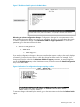

Table Of Contents
- Switch Software
- Contents
- 1 Commands found in the Basic Operation Guide
- 2 Getting started
- 3 Using the Menu Interface
- 4 Using the Command Line Interface (CLI)
- Overview
- Accessing the CLI
- Using the CLI
- Return message types with CLI commands
- CLI interactive commands
- CLI control and editing
- 5 Using the HP WebAgent
- 6 Switch memory and configuration
- Overview
- Configuration file management
- Using the CLI to implement configuration changes
- Creating a custom default configuration
- Using the menu and WebAgent to implement configuration changes configuration file
- Zeroization
- Using Primary and Secondary flash image options
- Multiple configuration files
- Display configuration of selected interface
- Automatic configuration update with DHCP Option 66
- 7 Interface access and system information
- 8 Configuring IP addressing
- Overview
- IP configuration
- Loopback interfaces
- IP Preserve: retaining VLAN-1 IP addressing across configuration file downloads
- Configuring a single source IP address
- 9 Software management
- Downloading switch documentation and software from the web
- Viewing or downloading the software manual set
- Downloading software updates for your switch
- Software signing and verification
- Saving configurations while using the CLI
- Important: Best Practices for software updates
- Updating the switch: overview
- Updating the switch: detailed steps
- Rolling back switch software
- Viewing or transferring alternate configuration files
- Downloading switch documentation and software from the web
- Index
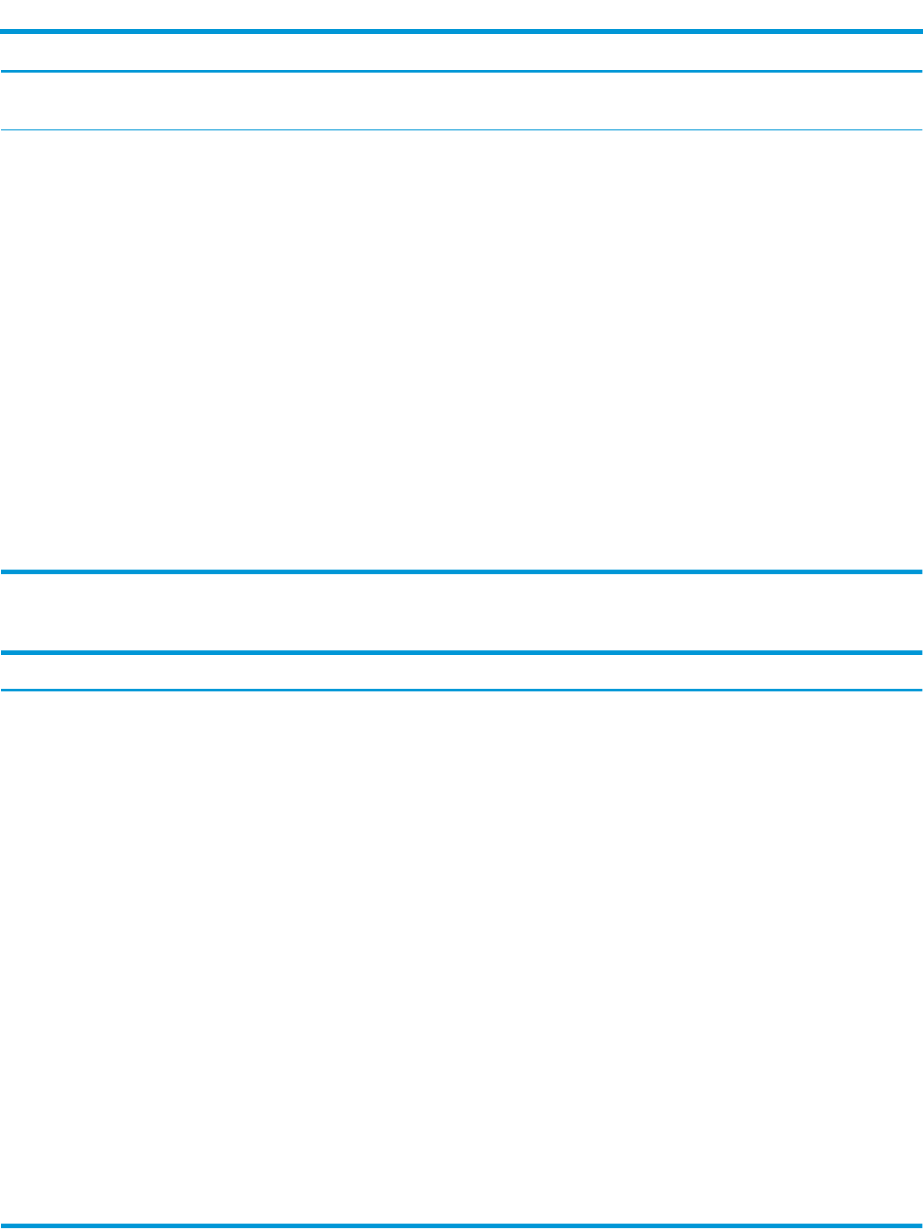
Table 4 Privilege level hierarchy (continued)
Example of Prompt and Permitted OperationsPrivilege Level
Terminate the current session (same as
logout).
exit
Manager
Privilege
Perform system-level actions such as system
control, monitoring, and diagnostic
HP Switch#Manager Level
commands, plus any of the Operator-level
commands. For a list of available
commands, enter ? at the prompt.
Execute configuration commands, plus all
Operator and manager commands. For a
HP
Switch(config)#
Global
Configuration
Level list of available commands, enter ? at the
prompt.
Execute context-specific configuration
commands, such as a particular VLAN or
HP
Switch(eth-5)#
Context
Configuration
Level switch port. This is useful for shortening the
HP
Switch(vlan-100)#
command strings you type, and for entering
a series of commands for the same context.
For a list of available commands, enter ? at
the prompt.
How to move between levels
Example of Prompt, Command, and ResultChange in Levels
After you enter enable, the
Password prompt appears. After
HP Switch> enable
Password:_
Operator level to Manager level
you enter the Manager password,
HP Switch#_
the system prompt appears with
the # symbol:
HP Switch# configManager level to Global
configuration level
HP Switch(config)#
HP Switch(config)# vlan 10Global configuration level to a
Context configuration level
HP Switch(vlan-10)#
The CLI accepts "e" as the
abbreviated form of "ethernet".
HP Switch(vlan-10)# interface e 3
HP Switch(int-3)#
Context configuration level to
another Context configuration level
HP Switch(int-3)# exitMove from any level to the
preceding level
HP Switch(config)# exit
HP Switch# exit
HP Switch>
HP Switch(int-3)# endMove from any level to the
Manager level
HP Switch#
-or-
HP Switch(config)# end
HP Switch#
Moving between the CLI and the Menu interface. When moving between interfaces, the switch
retains the current privilege level (Manager or Operator). That is, if you are at the Operator level
in the menu and select the Command Line Interface (CLI) option from the Main Menu, the CLI prompt
appears at the Operator level.
Changing parameter settings. Regardless of which interface is used (CLI, menu interface, or
WebAgent), the most recently configured version of a parameter setting overrides any earlier
30 Using the Command Line Interface (CLI)