
Basic Operation Guide 2013/06

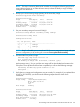
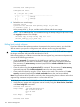
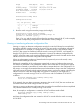
Table Of Contents
- Switch Software
- Contents
- 1 Commands found in the Basic Operation Guide
- 2 Getting started
- 3 Using the Menu Interface
- 4 Using the Command Line Interface (CLI)
- Overview
- Accessing the CLI
- Using the CLI
- Return message types with CLI commands
- CLI interactive commands
- CLI control and editing
- 5 Using the HP WebAgent
- 6 Switch memory and configuration
- Overview
- Configuration file management
- Using the CLI to implement configuration changes
- Creating a custom default configuration
- Using the menu and WebAgent to implement configuration changes configuration file
- Zeroization
- Using Primary and Secondary flash image options
- Multiple configuration files
- Display configuration of selected interface
- Automatic configuration update with DHCP Option 66
- 7 Interface access and system information
- 8 Configuring IP addressing
- Overview
- IP configuration
- Loopback interfaces
- IP Preserve: retaining VLAN-1 IP addressing across configuration file downloads
- Configuring a single source IP address
- 9 Software management
- Downloading switch documentation and software from the web
- Viewing or downloading the software manual set
- Downloading software updates for your switch
- Software signing and verification
- Saving configurations while using the CLI
- Important: Best Practices for software updates
- Updating the switch: overview
- Updating the switch: detailed steps
- Rolling back switch software
- Viewing or transferring alternate configuration files
- Downloading switch documentation and software from the web
- Index

NOTE: You might opt to use a different methodology in which the new software will be installed
as the secondary and not the primary image, in which case you would use the commands boot
system flash secondary, and/or boot set-default flash secondary to change the location of the
default boot. However, since you will still need to take precautions to allow you to revert to your
previous configuration, We strongly recommend that you follow the methods that are proposed in
our update process. This will ensure that you can use our proposed roll back procedures should
the need arise.
Updating the switch: detailed steps
The following detailed steps shows how to update the switch software from an existing version to
a significant new version (in the example provided here, from version K.14.47 to version
K.15.01.0031).
1. Download the latest software image to your TFTP server from the HP networking web site:
www.hp.com/networking/support
2. Save your current configuration (Config1) to backup configuration file (Config2).
a. Before copying the config, verify the current state of your system using the show version,
show flash and show config files commands. For example:
Switch1# show version
Image stamp: /sw/code/build/btm(t4a)
Nov 6 2009 13:20:26
K.14.47
188
Boot Image: Primary
Switch1# show flash
Image Size(Bytes) Date Version
------ ----------- ------- -------
Primary Image : 9839140 11/06/09 K.14.47
Secondary Image : 0
Boot Rom Version: K.12.20
Default Boot : Primary
Switch1# show config files
Configuration files:
id | act pri sec | name
---+-------------+-----------------------------
1 | * * * | config1
2 | |
3 | |
b. Create a backup configuration file and verify the change.
Switch1# copy config config1 config config2
Switch1# show config files
Configuration files:
id | act pri sec | name
---+-------------+-----------------------------
1 | * * * | config1
2 | | config2
3 | |
3. Save the current config to a tftp server using the copy tftp command. For example:
Switch1# copy startup-config tftp 10.1.1.60
Switch1_config_K_14_47.cfg
134 Software management