
Basic Operation Guide 2013/06

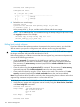
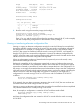
Table Of Contents
- Switch Software
- Contents
- 1 Commands found in the Basic Operation Guide
- 2 Getting started
- 3 Using the Menu Interface
- 4 Using the Command Line Interface (CLI)
- Overview
- Accessing the CLI
- Using the CLI
- Return message types with CLI commands
- CLI interactive commands
- CLI control and editing
- 5 Using the HP WebAgent
- 6 Switch memory and configuration
- Overview
- Configuration file management
- Using the CLI to implement configuration changes
- Creating a custom default configuration
- Using the menu and WebAgent to implement configuration changes configuration file
- Zeroization
- Using Primary and Secondary flash image options
- Multiple configuration files
- Display configuration of selected interface
- Automatic configuration update with DHCP Option 66
- 7 Interface access and system information
- 8 Configuring IP addressing
- Overview
- IP configuration
- Loopback interfaces
- IP Preserve: retaining VLAN-1 IP addressing across configuration file downloads
- Configuring a single source IP address
- 9 Software management
- Downloading switch documentation and software from the web
- Viewing or downloading the software manual set
- Downloading software updates for your switch
- Software signing and verification
- Saving configurations while using the CLI
- Important: Best Practices for software updates
- Updating the switch: overview
- Updating the switch: detailed steps
- Rolling back switch software
- Viewing or transferring alternate configuration files
- Downloading switch documentation and software from the web
- Index

NOTE: The allow-no-signature option is available on switches that support non-signed legacy
software releases and should be used with caution. To determine support for your switch, go to:
www.hp.com/networking/swvalidation.
Saving configurations while using the CLI
The switch operates with two configuration files:
• Running-config file: Exists in volatile memory and controls switch operation. Rebooting the
switch erases the current running-config file and replaces it with an exact copy of the current
startup-config file. To save a configuration change, you must save the running configuration
to the startup-config file.
• Startup-config file: Exists in flash (non-volatile) memory and preserves the most recently-saved
configuration as the "permanent" configuration. When the switch reboots for any reason, an
exact copy of the current startup-config file becomes the new running-config file in volatile
memory.
When you use the CLI to make a configuration change, the switch places the change in the
running-config file. If you want to preserve the change across reboots, you must save the change
to the startup-config file. Otherwise, the next time the switch reboots, the change will be lost. There
are two ways to save configuration changes while using the CLI:
• Execute write memory from the Manager, Global, or Context configuration level.
• When exiting from the CLI to the Main Menu, press ‘y’ (for Yes) when you see the "save
configuration" prompt:
Do you want to save current configuration [y/n]?
Important: Best Practices for software updates
NOTE: With version K.15.01.0031 and later software, you will notice a slight change in the
versioning system.
Software updates that contain significant new features and enhancements may be designated by
an increment to both the major and minor release version numbers. That is, K.15.01.0031 represents
a major update to software version(s) K.14.xx, and K.14.xx represents a major update to K.13.xx,
and so forth. In addition, a future version (such as K.15.02.xxxx) may represent a minor release
to version K.15.01.xxxx, but may still contain significant changes. To mitigate against potential
migration issues when performing such updates, this section documents best practices for updating
the switch, including contingency procedures for rolling back to previous software versions and
saved configurations.
132 Software management