
Basic Operation Guide 2013/06
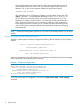
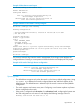
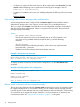



Table Of Contents
- Switch Software
- Contents
- 1 Commands found in the Basic Operation Guide
- 2 Getting started
- 3 Using the Menu Interface
- 4 Using the Command Line Interface (CLI)
- Overview
- Accessing the CLI
- Using the CLI
- Return message types with CLI commands
- CLI interactive commands
- CLI control and editing
- 5 Using the HP WebAgent
- 6 Switch memory and configuration
- Overview
- Configuration file management
- Using the CLI to implement configuration changes
- Creating a custom default configuration
- Using the menu and WebAgent to implement configuration changes configuration file
- Zeroization
- Using Primary and Secondary flash image options
- Multiple configuration files
- Display configuration of selected interface
- Automatic configuration update with DHCP Option 66
- 7 Interface access and system information
- 8 Configuring IP addressing
- Overview
- IP configuration
- Loopback interfaces
- IP Preserve: retaining VLAN-1 IP addressing across configuration file downloads
- Configuring a single source IP address
- 9 Software management
- Downloading switch documentation and software from the web
- Viewing or downloading the software manual set
- Downloading software updates for your switch
- Software signing and verification
- Saving configurations while using the CLI
- Important: Best Practices for software updates
- Updating the switch: overview
- Updating the switch: detailed steps
- Rolling back switch software
- Viewing or transferring alternate configuration files
- Downloading switch documentation and software from the web
- Index
This command defines the single character used to terminate the banner text and
enables banner text input. You can use any character except a blank space as a
delimiter. The no form of the command disables the login banner feature.
<banner-text-string>
The switch allows up to 3070 banner characters, including blank spaces and CR-LF
([Enter]). (The tilde “~“ and the delimiter defined by banner motd <delimiter>
are not allowed as part of the banner text.) While entering banner text, you can
backspace to edit the current line (that is, a line that has not been terminated by a
CR-LF.) However, terminating a line in a banner by entering a CR-LF prevents any
further editing of that line. To edit a line in a banner entry after terminating the line
with a CR-LF requires entering the delimiter described above and then re-configuring
new banner text.
NOTE: In redundant management, the banner is not seen on the standby module, only the active
module.
Example of configuring and displaying a banner
Suppose a system operator wanted to configure the following banner message on her company’s
switches:
This is a private system maintained by the
Allied Widget Corporation
Unauthorized use of this system can result in
civil and criminal penalties!
In this case, the operator will use the [Enter] key to create line breaks, blank spaces for line centering,
and the % symbol to terminate the banner message.
Example 1 Configuring a login banner
HP Switch(config)# banner motd %
Enter TEXT message. End with the character'%'
This is a private system maintained by the
Allied Widget Corporation.
Unauthorized use of this system can result in
civil and criminal penalties!%
HP Switch(config)# write memory
To view the current banner configuration, use either the show banner motd or show running
command.
12 Getting started