
User's Manual
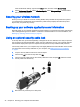



Table Of Contents
- Starting right
- Getting to know your computer
- Connecting to a network
- Enjoying entertainment features
- Using a webcam (select models only)
- Using audio
- Using video
- Navigating the screen
- Managing power
- Initiating and exiting Sleep and Hibernation
- Using the power meter and power settings
- Running on battery power
- Running on AC power
- Shutting down (turning off) the computer
- Maintaining your computer
- Securing your computer and information
- Using Setup Utility (BIOS)
- Using HP PC Hardware Diagnostics (UEFI)
- Backing up, restoring, and recovering
- Specifications
- Electrostatic Discharge
- Index

Setting Setup Utility (BIOS) passwords
Password Function
Administrator password
●
Must be entered each time you access Setup Utility
(BIOS).
●
If you forget your administrator password, you cannot
access Setup Utility (BIOS).
Power-on password
●
Must be entered each time you turn on or restart the
computer.
●
If you forget your power-on password, you cannot turn
on or restart the computer.
To set, change, or delete an administrator or power-on password in Setup Utility (BIOS):
NOTE: If you have tablet with a detachable keyboard or keyboard dock, attach it before beginning
these steps.
1. Start Setup Utility (BIOS):
Turn on or restart the computer, quickly press esc
, and then press f10.
2. Use the arrow keys to select
Security, and then follow the on-screen instructions.
Your changes take effect when the computer restarts.
Using the fingerprint reader (select models only)
Integrated fingerprint readers are available on select computer models.
NOTE: For the location of the fingerprint reader on your computer, see Identifying components
on page 5.
To use the fingerprint reader, you must set up a user account and password on the computer and
then register one or more fingerprints using HP SimplePass software.
To register fingerprints with HP SimplePass:
1. Swipe a finger on the fingerprint sensor to launch HP SimplePass.
– or –
From the Start screen, type
simple, and then select HP SimplePass.
2. When the HP SimplePass welcome screen is revealed, click Get Started
.
3. HP SimplePass prompts you to swipe your right index finger over the sensor.
4. Swipe your finger 3 times to finish the registration.
If registration is successful, a green circle appears on the corresponding finger in the illustration.
5. Repeat steps 1 through 4 to register an additional fingerprint.
Using Internet security software
When you use your computer to access email, a network, or the Internet, you potentially expose your
computer to computer viruses, spyware, and other online threats. To help protect your computer,
42 Chapter 8 Securing your computer and information