
System information
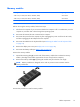




WLAN/Bluetooth combo card
The computer uses a card that provides both WLAN and Bluetooth functionality.
CAUTION: The WLAN module and the WWAN module are not interchangeable.
Description Spare part number
Ralink RT3290LE 802.11bgn 1x1 Wi-Fi and Bluetooth 4.0 Combo Adapter 690020-005
Broadcom BCM4352 802.11ac 2x2 Wi-Fi + BT 4.0 Combo Adapter 724935-005
Before removing the WLAN module, follow these steps:
1. Shut down the computer. If you are unsure whether the computer is off or in Hibernation, turn the
computer on, and then shut it down through the operating system.
2. Disconnect all external devices connected to the computer.
3. Disconnect the power from the computer by first unplugging the power cord from the AC outlet,
and then unplugging the AC adapter from the computer.
4. Disconnect the tablet from the keyboard dock (see
Releasing the tablet from the keyboard dock
on page 34).
5. Remove the display rear cover (see
Display rear cover on page 49).
6. Disconnect the battery cable (see
Battery cable on page 50).
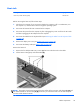
Remove the WLAN module:
1. Position the computer upside-down.
2. Disconnect the WLAN antenna cables (1) from the terminals on the WLAN module.
NOTE: The WLAN antenna cable labeled “1” connects to the WLAN module “Main” terminal
labeled “1”. The WLAN antenna cable labeled “2” connects to the WLAN module “Aux” terminal
labeled “2”. If the computer is equipped with an 802.11a/b/g/n WLAN module, the yellow
WLAN antenna cable connects to the middle terminal on the WLAN module.
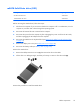
3. Remove the Phillips PM2.5×3.0 screw (2) that secures the WLAN module to the tablet. (The edge
of the module opposite the slot rises away from the tablet.)
Tablet components
55