
System information

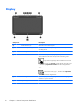

Components Description
(3)
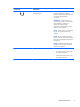
Power connector Connects an AC adapter.
(4) AC adapter/Battery light
●
White: The AC adapter is connected and the battery is
charged.
●
Blinking white: The battery has reached a low battery
level.
●
Amber: The AC adapter is connected and the battery
is charging.
●
Off: The computer is using DC power.
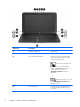
(5) Docking port Connects the tablet to the keyboard dock.
(6)
Audio-out (headphone) jack/Audio-in
(microphone) jack
Connects optional powered stereo speakers, headphones,
earbuds, a headset, or a television audio cable.
WARNING! To reduce the risk of personal injury, adjust
the volume before using headphones, earbuds, or a
headset. For additional safety information, see the
Regulatory, Safety and Environmental Notices.
NOTE: When a device is connected to the jack, the
computer speakers are disabled.
NOTE: Be sure that the device cable has a 4-conductor
connector that supports both audio-out (headphone) and
audio-in (microphone).
NOTE: Stand-alone microphones and headphones with
separate microphone jacks are not supported.
(7)
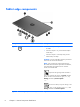
Micro SD memory card reader Supports micro Secure Digital (SD) memory cards.
(8) Vent Enables airflow to cool internal components.
NOTE: The computer fan starts up automatically to cool
internal components and prevent overheating. It is normal
for the internal fan to cycle on and off during routine
operation.
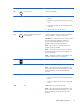
(9) Volume button Controls speaker volume on the tablet.
●
To increase speaker volume, press the + edge of the
button.
●
To decrease speaker volume, press the – edge of the
button.
(10) Vent Enables airflow to cool internal components.
NOTE: The computer fan starts up automatically to cool
internal components and prevent overheating. It is normal
for the internal fan to cycle on and off during routine
operation.
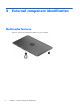
Tablet edge components
9