
user manual


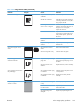



Table 3-48 MP modes under the Optimize submenu (continued)
Line Voltage Set to Low Voltage if the product is operating in a low-
voltage environment and you are having problems with print
quality such as blisters in the printed image.
Tray 1 Set to Alternate if you are seeing marks on the back side of
the paper when printing from Tray 1. This sets the product to
initiate a clean sequence every time a job finishes when the
product is set for Any Size and Any Type for Tray 1.
Background Set to Alternate 1 when a background occurs all over the
page. Set to Alternate 2 when thin vertical lines appear on
the page. Set to Alternate 3 when the other alternatives do
not correct the problem.
Uniformity Control Set to Alternate 1 to improve uniformity on any paper type.
Set to Alternate 2 to improve uniformity on normal and light
paper types. Set to Alternate 3 when the other alternatives
do not correct the problem.
Tracking Control The default setting is On. This item is for manufacturing use
only.
Registration Set to Alternate when color misregistration occurs.
Transfer Control Set to Alternate 1 to reduce primary transfer bias and to
resolve low density or blotchy images. Set to Alternate 2 to
resolve ghosting outlines that look like a finger or fingers. Set
to Alternate 3 when the other alternatives do not correct the
problem.
Fuser Temp The default setrting for this item is Normal. Use the
Alternate setting to reduce the occurance of first-page fuser
wrinkle or toner blister.
Restore Optimize Use this item to reset the menu defaults.
496 Chapter 3 Solve problems ENWW