
user manual
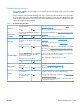

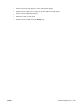
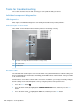
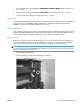



Troubleshooting flowchart
This flowchart highlights the general processes that you can follow to quickly isolate and solve product
hardware problems.
Each row depicts a major troubleshooting step. A “yes” answer to a question allows you to proceed to
the next major step. A “no” answer indicates that more testing is needed. Go to the appropriate section
in this chapter, and follow the instructions there. After completing the instructions, go to the next major
step in this troubleshooting flowchart.
Table 3-2 Troubleshooting flowchart
1
Power on
Is the product on and does a readable
message display?
Follow the power-on troubleshooting checks. See Power
subsystem on page 240.
After the control panel display is functional, see step 2.
Yes
No
2
Control panel
messages
Does the message Ready display on the
control panel?
If an error message displays, see Interpret control-panel messages
on page 345.
After the errors have been corrected, go to step 3.
Yes
No
3
Event log
Open the DIAGNOSTICS menu and print an
event log to see the history of errors with this
product.
Does the event log print?
If the event log does not print, see Print an event log
on page 376.
If paper jams inside the product, see
Clear paper jams
on page 383.
If error messages display on the control panel when you try to print
an event log, see
Interpret control-panel messages on page 345.
After successfully printing and evaluating the event log, see step 4.
Yes
No
4
Information pages
Open the INFORMATION menu and print the
configuration pages to verify that all the
accessories are installed.
Are all the accessories installed?
If accessories that are installed are not listed on the configuration
page, remove the accessory and reinstall it.
After evaluating the configuration pages, see step 5.
Yes
No
5
Image quality
Does the print quality meet the customer's
requirements?
Compare the images with the sample defects in the image defect
tables. See
Image defects table on page 410.
After the print quality is acceptable, see step 6.
Yes
No
6
Interface
Can the customer print successfully from the
host computer?
Verify that all I/O cables are connected correctly and that a valid
IP address is listed on the Jetdirect configuration page.
If error messages display on the control panel, see
Interpret control-
panel messages on page 345.
When the customer can print from the host computer, this is the end
of the troubleshooting process.
Yes. This is the end of
the troubleshooting
process.
No
ENWW Troubleshooting process 239