
Operation Manual




V 2.9.0
MivaTek International, Inc. 11
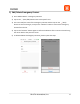
c.) Add Authorized/Family User
1) Go to Sidebar Menu -> Authorized/Family Users
2) Tap on the (Add) button.
3) Input the first name and last name of the Authorized/Family User, the assigned country
code of the phone number, the Authorized/Family User’s phone number, and then, if
necessary, select the check-box for feature phone usage. (Owners can add users of
feature phones as authorized users. They will receive a phone call when there is an
event. Feature phone authorized users will not receive an invitation to accept owner’s
authorization. The server will automatically accept for the user. This user does not need
to take any actions such as downloading the App and/or phone number verification.)
4) The “Copy from Address Book” button will display your contacts and allow you to
choose one to add as an Authorized/Family User.
5) Tap on the (Save) button to confirm addition or (Back) to go to previous screen.
6) To add additional Authorized/Family Users, please repeat the steps.
7) Server will send out a notice to new Authorized/Family Users.