Liquid Crystal Projector Model CP-X960WA / 970W USER’S GUIDE Thank you for purchasing the Hitachi liquid crystal projector. Please read this user’s manual thoroughly to ensure correct usage through understanding. After reading, store this instruction manual in a safe place for future reference. Outline This liquid crystal projector is used to project various computer signals as well as NTSC/PAL/SECAM video signals onto a screen.
About Trademarks • VGA and XGA are trademarks of IBM (International Business Machines Corporation). • Macintosh is a registered trademark of Apple Computer Corporation of the U.S. • VESA and SVGA are trademarks or registered trademarks of Video Electronics Standards association. • Windows95 and Windows98 are registered trademarks of Microsoft Corporation in the U.S. and other countries. Carefuly observe the trademarks and registered trademarks of all companies, even when not mentioned.
WARNING: This equipment has been tested and found to comply with the limits for a Class A digital device, pursuant to Part 15 of the FCC Rules. These limits are designed to provide reasonable protection against harmful interference when the equipment is operated in a commercial environment.
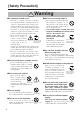
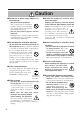
[Safety Precaution] Warning ■ If a problem should occur. or a strange odor arise, continued • Ifusesmoke could result in fire or electrical shock. In • • such case, immediately turn off the power switch and then disconnect the power plug from the power outlet. After making sure that the smoke or odor has stopped, contact your dealer for repairs. Never attempt to make repairs yourself because this is dangerous.
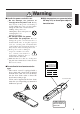
Warning ■ Handle the power cord with care. not damage, cut, process or • Do strongly twist the power cord. Placing heavy objects on the power cord, heating or strongly pulling the power cord can result in damage as well as fire or electrical shock. • Pulling on the power cord • Placing heavy objects on the power cord • Damaging the cord • Placing near heaters ■ High temperatures are generated when the lamp is lit, so do not place objects in front of the lens.
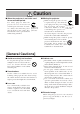
Caution ■ Do not sit or place heavy objects on this projector. Do not sit on this projector. • This could result in overturning, • leading to damage or personal injury. Use special caution in households where children are present. Do not place heavy objects on this projector. Placing heavy objects on this projector could result in loss of balance or falling and cause personal injury. ■ Do not block the ventilation openings. Do not block the ventilation openings of this projector.
Caution ■ When the projector is not to be used for an extended period. For safety purposes when the projector is not to be used for an extended period because of travel, the etc., always disconnect the power Disconnect plug from the plug from the power outlet. Also power outlet. close the lens cover to prevent the lens surface being scratched. ■ Moving the projector.
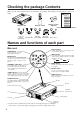
Checking the package Contents Make sure all of the following items are included in the package. If anything is missing, please contact your dealer.
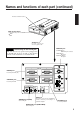
Names and functions of each part (continued) Remote control I/R receiver Main power switch Used to turn the power on and off. : OFF : ON AC IN jack Used to connect the accessory power cord. VIDEO IN jack Caution Connecting to the AC IN jack Make sure the accesory power cord is plugged into the AC IN jack as far as it will go. Incomplete connection can result in fire or electrical shock.
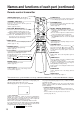
Names and functions of each part (continued) Remote control transmitter VIDEO, RGB button LASER button Press to switch the input. (Refer to page 13, 19.) STANDBY / ON button VIDEO RGB LASER STANDBY/ON POSITION Used to turn the power on and off. Press for 1 sec. or more to turn the power off (enter standby status). (Refer to pages13 and 14.) button * POSITION Press Position, then use the mouse Disk Pad to adjust the image position (RGB mode only). (Refer to page 16.
Names and functions of each part (continued) Caution • Auto adjust can take up to 30 seconds. • Auto adjust may not operate correctly in some cases, depending on the computer connected and the signal. • Be sure to expand images to full screen size when displaying low resolution images. • After auto adjust, the image may be slightly dark in some cases due to automatic adjustment of the signal level.
Installation Typical LCD Projector and Screen Installation Use the diagram below as reference to determine the screen size and projection distnace. Side view Top view Screen Lens center b a a a (inches) Screen size (inches) b (inches) Minimum Maximum 40 55 73 1 60 85 114 2 80 114 151 2 100 144 191 3 120 176 231 3 150 220 282 4 200 291 386 6 a. Distance from the LCD projector to the screen b. Distance from the lens center to the bottom of the screen (a,b : +/-10%).
Basic operations To project VIDEO RGB LASER 2 POSITION STANDBY/ON 7 5 7 4 2 RESET MENU FREEZE MAGNIFY VOLUME OFF P in P 5 1 BLANK FOCUS MUTE AUTO TIMER 4 ZOOM 3 1 Turn on the main power switch of the projector [ I: ON]. 2 Press the STANDBY / ON button. 3 4 5 Remove the lens cap. 6 Turn on the power to the connected equipment. 7 Press either the INPUT button of the projector or the VIDEO/RGB button of the remote control to select the signal to be projected on the screen.
Basic operations (continued) Turning off the power 1 VIDEO RGB LASER STANDBY/ON POSITION 1 RESET MENU FREEZE MAGNIFY VOLUME OFF 2 P in P 3 BLANK MUTE AUTO TIMER 1 Press the STANDBY/ON button for approximately 1 sec. 2 3 Turn off the main power switch of the projector [ • The Power indicator will blink orange, then the lamp will turn off. Approximately 1 sec. after that, the indicator will light orange. • After the power is turned off, the lamp will be cooled for approximately 1 min.
Basic operations (continued) Freeze function This function is used to freeze the image being displayed. (refer to page 10) VIDEO RGB LASER STANDBY/ON POSITION RESET MENU FREEZE MAGNIFY 1 VOLUME OFF P in P BLANK 1 MUTE AUTO TIMER Press the FREEZE button. • The image being displayed will freeze. • The [ ] mark appears in the lower right corner of the screen when the Freeze function is on. Cancelling the FREEZE function 1 Press the FREEZE button. • The FREEZE function will be cancelled.
Basic operations (continued) Magnify function VIDEO RGB LASER STANDBY/ON POSITION Part of an image can be displayed magnified. (refer to page 10) 4 5 RESET 1,2 MENU MAGNIFY 3 VOLUME OFF P in P BLANK 1 6 FREEZE MUTE AUTO TIMER Press the MAGNIFY + button. • The center part of the image will be displayed magnified approximately 2x. Changing the magnification ratio 2 Press the MAGNIFY + button. 3 Press the MAGNIFY – button.
Adjustments and functions VIDEO RGB LASER 1, 2, 3 POSITION STANDBY/ON 2, 3 RESET MENU FREEZE MAGNIFY VOLUME OFF MENU P in P 1 BLANK FOCUS MUTE AUTO 3 TIMER ZOOM 1, 3 1 Press the MENU ( ) buttons of the projector or the MENU button of the remote control. • The Menu screen will appear. (refer to page 18 - 21 for details.) 2 Press the MENU ( ) buttons of the projector or the DISK PAD button of the remote control to select the menu item to be adjusted.
Adjustments and functions (continued) SET UP Images and display positions can be adjusted from the SETUP menu. Video signal input RGB signal input SETUP INPUT IMAGE VOLUME BRIGHT CONTRAST V POSIT H POSIT H PHASE H SIZE COLOR BAL R COLOR BAL B SETUP OPT. 800 VOLUME BRIGHT (BRIGHTNESS) CONTRAST SHARPNESS COLOR TINT IMAGE OPT.
Adjustments and functions (continued) INPUT The INPUT menu is used to select RGB signal sync signal frequency of the monitor and the VIDEO signal. SETUP RGB VIDEO INPUT IMAGE OPT. fH:38kHz SETUP INPUT RGB VIDEO fV:60Hz IMAGE OPT. AUTO NTSC PAL SECAM NTSC4.43 M-PAL N-PAL Adjustment item Adjustment description RGB Displays the following RGB inputs fH: horizontal sync frequency fV: vertical sync frequency VIDEO Sets the video signal system.
Adjustments and functions (continued) IMAGE Projection image inversion, etc., can be selected from the IMAGE menu. SETUP SETUP INPUT IMAGE KEYSTONE MIRROR BLANK START UP P. IN P. OPT. INPUT IMAGE OPT. SETUP KEYSTONE MIRROR BLANK START UP P. IN P. SETUP INPUT KEYSTONE MIRROR BLANK START UP P. IN P. SETUP INPUT INPUT KEYSTONE MIRROR BLANK START UP P. IN P. IMAGE OPT. SETUP KEYSTONE MIRROR BLANK START UP P. IN P.
Adjustments and functions (continued) OPT Communication functions, etc., can be set from the OPT menu. SETUP SETUP INPUT IMAGE COM. SPEED COM. BITS TIMER LANGUAGE AUTO OFF SYNC ON G OPT. INPUT COM. SPEED COM. BITS TIMER LANGUAGE AUTO OFF SYNC ON G 1200bps 2400bps 4800bps 9600bps 19200bps SETUP IMAGE INPUT COM. SPEED COM. BITS TIMER LANGUAGE AUTO OFF SYNC ON G SETUP INPUT COM. SPEED COM. BITS TIMER LANGUAGE AUTO OFF SYNC ON G Adjustment item COM. SPEED COM. BITS TIMER IMAGE OPT.
Connection to the video signal terminals 1. Input signals Brightness signal Color signal S-VIDEO signal 1.0V p-p, 75 Ω terminator 0.286V p-p (burst signal), 75 Ω terminator 1.0V p-p, 75 Ω terminator VIDEO signal Input 200mV rms, 20k Ω or less (max. 3.0V p-p) Output 0∼200mVrms,1k Ω Audio signal 2. Signal input jacks Color signal Ground Brightness signal Ground S-VIDEO input (mini DIN 4-pin) Caution The priority sequence of the video input jacks is as follows.
Connection to the RGB signal terminal (continued) 3. Example of computer signal Resolution H×V fH (kHz) fV (Hz) 640 × 400 24.8 56.4 640 × 350 37.9 85.1 640 × 400 37.9 720 × 400 Rating Signal mode Display mode NEC PC9800 Zoom in VESA VGA-1 Zoom in 85.1 VESA VGA-2 Zoom in 37.9 85.0 VESA TEXT Zoom in 640 × 480 31.5 59.9 VESA VGA-3 Zoom in 640 × 480 35.0 66.7 Mac13"mode Zoom in 640 × 480 37.9 72.8 VESA VGA-3(72Hz) Zoom in 640 × 480 37.5 75.
Connection to the RGB signal terminal (continued) 4. Initial set signals The following signals are used for the initial settings. The signal timing of some computer models may be different. In such case, refer to pages 17 and 18 and adjust the V.POSIT and H.POSIT of the menu. Back porch bb Front porch d d Display cinterval c DATA HSYNC Computer/Signal VGA-1(85Hz) Syncaa Horizontal signal timing (µs) Computer/Signal Horizontal signal timing (µs) a b c d a b c d 2.0 3.0 20.3 1.
Connecting the USB 1. Connect the projector and computer with a suitable commercially available cable. Disconnect the mouse cable from the projector. 2. Press the INPUT button of the projector or the RGB 1/2 button of the remote control and select the input where the computer is to be connected. 3. Start the mouse function. 4. Refer to page 10 concerning the remote control of mouse operations. 5. Varying the force with which the DISK PAD button is pressed varies the speed of mouse operation.
Connection to the control signal terminal 1. Mouse functions (1) Turn off the main power switches of the projector and computer and connect the two units with the cable provided or an optional suitable commercially available cable. Disconnect the USB cable from the projector. (2) Turn on the main switch of the projector (the POWER indicator lamp will light green). (3) Press the INPUT button of the projector or the RGB button of the remote control and select the input where the computer is to be connected.
Connection to the control signal terminal (continued) CONTROL signal jack ADB (Mac) mouse Mouse Pin no.
Connection to the control signal terminal (continued) 2. RS232C communication (1) Turn off the projector and computer power supplies and connect with the RS232C cable. (2) Turn on the computer power supply and, after the computer has started up, turn on the projector power supply. (3) Refer to page 21 and set the communication speed and the number of communication bits. (4) Start RS232C communication.
Connection to the control signal terminal (continued) Command data chart Item MOUSE Data code 00h=disable mouse function, 01 ∼ 7Fh=start mouse function COMMUNICATE 0Xh=8N1, 1Xh=7N1 X0h=1200bps, X1h=2400bps, X2h=4800bps, X3h=9600bps, X4h=19200bps POWER 3Eh=power off (standby status), 3Fh=power on ZOOM 01 ∼ 3Fh=Zoom +, 41 ∼ 7Fh=Zoom – FOCUS 01 ∼ 3Fh=Focus +, 41 ∼ 7Fh=Focus – MIRROR 00h=Normal, 01h=H : Invert, 02h=V : Invert, 03h=H & V : Invert INPUT 11h=VIDEO, 21h=RGB1, 22h=RGB2 SYSTEM (VIDEO)
Connection to the control signal terminal (continued) Requesting projector status (1) Send the request code ‘20H’ + ‘yyH’ from the computer to the projector. (2) The projector returns the response code ‘1xH’ + ‘yyH’ +data to the computer. Changing the projector settings (1) Send the setting code ‘3xH’ + ‘yyH’ +data from the computer to the projector. (2) The projector changes the setting based on the above setting code. (3) The projector returns the response code ‘1xH’ + ‘yyH’ +data to the computer.
Example of system setup Computer (notebook type) AC input 1 RGB IN 2 S-VIDEO IN VIDEO IN CONTROL RGB OUT AUDIO IN L MONO R AUDIO IN 1 2 AUDIO OUT USB Computer (desktop type) Video tape recorder with S jack Video tape recorder Speaker (with built-in amp) Caution Display monitor Turn power off to all devices before connecting. Refer to the instruction manual of each device before connecting. Cleaning the Air filter Clean the air filter about every 100 hours .
Cleaning the Air filter (continued) 3 4 Cleaning the air filter with a vacuum cleaner Installing the air filter Caution When the air filter becomes clogged with dust, etc., the projector power may turn off to prevent the internal heat level rising. (The lamp indicator color changes to red.) Do not operate the projector with the air filter removed. (If used with the air filter removed, dust can enter the LCD panel and produce an adverse effect on image quality.
Message table (continued) Indicators The POWER indicator, LAMP indicator and TEMP indicator light or blink in the following cases. POWER indicator LAMP indicator TEMP indicator Lights orange Turns off Turns off Standby status Flashes green Turns off Turns off Warming up Lights green Turns off Turns off Operation status *1 Flashes orange Turns off Turns off Cool down Status Processing Lights red Lights red Turns off Wait some time (approx. 20 min.) before The lamp does not light.
Specifications · These specifications are subject to change without notice. Product name Liquid crystal projector Model CP-X960WA / 970W Display method Three liquid crystal panels, three primary color system. Liquid crystal Panel size 3.3 cm (1.3 type) panel Drive system TFT active matrix Number of pixels 786,432 pixels ( 1,024 horizontal × 768 vertical) Lens Zoom lens F=1.7~2.3 f=49~64mm Lamp 190w UHB Speaker 1.2W + 1.2W (Stereo) Power supply AC100 ~ 120V, 3.7A / AC220 ~ 240V, 1.5A.
About the warranty and after-service About the warranty A warranty is provided for this product. Fill in the necessary items and store in a safe place. About after-service When a problem occurs, please check first using the Troubleshooting Chart provided in this instruction manual. If the problem still persists, contact your dealer or service company. About repairs during the warranty period Repairs will be made as described in the warranty. For details, please read the warranty.
QR41981 Printed in Japan KY-K (S)
Flüssigkristall-Projektor Modell CP-X960WA / 970W BEDIENUNGSANLEITUNG Herzlichen Glückwunsch zum Kauf dieses Flüssigkristall-Projektors von Hitachi. Bitte lesen Sie diese Bedienungsanleitung zugunsten der korrekten Bedienung aufmerksam. Bewahren Sie die Anleitung anschließend für späteres Nachschlagen an einem sicheren Platz auf. Kurzbeschreibung Dieser Flüssigkristallprojektor dient zum Projizieren von Computergrafiken und NTSC/PAL/SECAMVideobildern auf eine Leinwand.
Vor der Inbetriebnahme Bedeutung der Symbole Zugunsten der korrekten Bedienung des Geräts befinden sich in dieser Anleitung sowie auf dem Projektor selbst bestimmte Symbole, die auf Sicherheitsrisiken und entsprechende Vorsichtsmaßregeln hinweisen, um Körperverletzungen und Sachschäden zu vermeiden. Die Bedeutung dieser Symbole ist nachfolgend erklärt. Es ist wichtig, daß Sie die folgenden Sicherheitshinweise aufmerksam durchlesen und verstehen.
[Sicherheitshinweise] Warnung ■ Bei Auftreten von Betriebsstörungen fremden Gerüchen oder Rauchentwicklung • Bei kann eine Fortsetzung des Betriebs zu Bränden oder ■ Niemals im Badezimmer verwenden. Verwenden Sie den Projektor niemals im Badezimmer, da hierbei die Gefahr elektrischer Schläge besteht. elektrischen Schlägen führen. Schalten Sie das Gerät Nicht in der Nähe von in diesem Fall sofort aus, und ziehen den Wasser verwenden. Netzstecker aus der Steckdose.
Warnung ■ Den Projektor niemals in einen Behälter stellen, der Flüssigkeit enthält. Stellen Sie niemals Blumenvasen, Blumentöpfe, Tassen, Kosmetika oder Flüssigkeiten jeglicher Art auf den Projektor. Ein Verschütten kann zu Bränden oder elektrischen Schlägen führen. ■ Nur mit der korrekten Netzspannung betreiben. Betreiben Sie den Projektor ausschließlich mit der vorgeschriebenen Netzspannung. Ein Anschluß an andere Netzversorgungsquellen kann zu Bränden oder elektrischen Schlägen führen.
Vorsicht ■ Nicht auf den Projektor setzen und keine schweren Gegenstände darauf ablegen. auf den Projektor setzen. • Nicht Der Projektor kann hierdurch • umfallen und Verletzungen verursachen. Besondere Vorsicht ist in Haushalten mit Kindern geboten. Durch Auflegen schwerer Gegenstände kann der Projektor umfallen und Verletzungen verursachen.
Vorsicht Netzstecker niemals durch Ziehen • Den am Kabel von der Steckdose trennen. Brände oder elektrische Schläge ausgelöst werden. Den Netzstecker deshalb stets am Stecker haltend aus der Steckdose ziehen. ■ Transport des Projektors Transport des Projektors immer • Beim sicherstellen, daß der Objektivdeckel ■ Wenn der Projektor längere Zeit nicht benutzt wird: Wird der Projektor, z.B. aufgrund einer bevorstehenden Reise o. dergl.
Überprüfung des Lieferumfangs Den Kartoninhalt überprüfen und vergewissern, daß alle Teile vollständig vorhanden sind. Falls Teile fehlen, bitte an Ihren Fachhändler wenden.
Bezeichnung und Funktion der Teile (Fortsetzung) Infrarotempfänger für Fernbedienung Hauptnetzschalter Dient zum Ein- und Ausschalten des Geräts : OFF : ON Netzeingangsbuchse (AC IN) Dient zum Anschließen des Zusatznetzkabels. Videoeingangsbuchse (VIDEO IN) Vorsicht Anschluß an die Netzeingangsbuchse (AC IN) Darauf achten, den Stecker des Zusatznetzkabels so weit wie möglich in die Buchse AC IN einzuschieben. Ein lockerer Anschluß kann zu Bränden oder elektrischen Schlägen führen.
Bezeichnung und Funktion der Teile (Fortsetzung) Fernbedienungsteil VIDEO-, RGB-Taste LASER-Taste (LASER) Diese Taste dient zum Wählen der Eingangsquelle (siehe Seite 13, 19). VIDEO RGB Diese Taste dient zum Ein- und Ausschalten des Laserstrahls. Siehe Seite 11 über Verwendung und Vorsichtsmaßregeln. LASER Bereitschafts-/Ein-Taste (STANDY/ON) STANDBY/ON POSITION verwenden, um die Bildposition zu verschieben (nur RGB-Modus). (Siehe Seite 16).
Bezeichnung und Funktion der Teile (Fortsetzung) Vorsicht • Die automatische Einstellung kann bis zu 30 Sekunden in Anspruch nehmen. • • • • • • • • • Auto-Einstellung arbeitet möglicherweise in bestimmten Situationen nicht korrekt, je nach angeschlossenem Computer und Signal. Immer sicherstellen, daß die Bilder auf Vollgröße ausgedehnt werden, wenn Bilder mit niedriger Auflösung gezeigt werden.
Aufstellung Typische Aufstellung von LCD-Projektor und Leinwand Mit Hilfe dieser Abbildung die Größe der Leinwand und deren Entfernung zum Projektor bestimmen. Seitenansicht Aufsicht Leinwand Objektivmitte b a a a (m) Leinwandgröße (m) b (cm) Minimal Maximal 1,0 1,4 1,9 3 1,5 2,2 2,9 4 2,0 2,9 3,8 6 2,5 3,7 4,9 7 3,0 4,5 5,9 9 3,8 5,6 7,2 11 5,0 7,4 9,8 15 a. Entfernung des LCD-Projektors zur Leinwand b.
Grundlegende Bedienung Projizieren von Bildern VIDEO RGB LASER 2 5 7 4 2 STANDBY/ON POSITION 7 RESET MENU FREEZE MAGNIFY VOLUME OFF P in P 5 BLANK FOCUS MUTE AUTO TIMER 4 ZOOM 1 3 1 Das Gerät mit dem Hauptnetzschalter am Projektor einschalten [ I: ON]. 2 Die Taste STANDBY / ON drücken. 3 4 5 Den Objektivdeckel abnehmen. 6 Das angeschlossene Gerät einschalten.
Grundlegende Bedienung (Fortsetzung) Ausschalten der Netzversorgung 1 VIDEO RGB LASER STANDBY/ON POSITION 1 RESET MENU FREEZE MAGNIFY VOLUME OFF 2 P in P 3 BLANK MUTE AUTO TIMER 1 Die Taste STANDBY / ON etwa 1 Sekunde lang drücken. 2 Das Gerät mit dem Hauptnetzschalter am Projektor ausschalten [ : OFF]. 3 Den Objektivdeckel anbringen. • Die Power - Anzeige blinkt orange, dann schaltet sich die Lampe aus. Etwa eine Sekunde später leuchtet die Anzeigelampe orange.
Grundlegende Bedienung (Fortsetzung) Festhalten-Funktion Diese Funktion dient zum Festhalten des gezeigten Bildes. (siehe Seite 10) VIDEO RGB LASER STANDBY/ON POSITION RESET MENU FREEZE MAGNIFY 1 VOLUME OFF P in P BLANK 1 MUTE AUTO TIMER Die FREEZE-Taste drücken. • Das gezeigte Bild wird festgehalten. • Die Markierung [ ] erscheint in der rechten unteren Ecke des Bildschirms, wenn die FREEZEFunktion eingeschaltet ist. Aufheben der FREEZE-Funktion 1 Die FREEZE-Taste drücken.
Grundlegende Bedienung (Fortsetzung) VIDEO Vergrößerungsfunktion RGB LASER STANDBY/ON POSITION Ein Teil eines Bildes kann vergrößert gezeigt werden. (siehe Seite 10) 4 5 RESET 1,2 MENU MAGNIFY 3 VOLUME OFF P in P BLANK 1 6 FREEZE MUTE AUTO TIMER Die Taste MAGNIFY + drücken. • Die Bildmitte wird ca. 2fach vergröflert dargestellt. Ändern des Vergrößerungsverhältnisses 2 Die Taste MAGNIFY + drücken. 3 Die Taste MAGNIFY – drücken.
Einstellungen und Funktionen VIDEO RGB LASER 1, 2, 3 POSITION STANDBY/ON 2, 3 RESET MENU FREEZE MAGNIFY VOLUME OFF MENU P in P 1 BLANK FOCUS MUTE AUTO 3 TIMER ZOOM 1, 3 1 Die MENU-Tasten ( ) am Projektor oder die Taste MENU am Fernbedienungsteil drücken. • Das Menübild erscheint. • Einzelheiten siehe Seite 18 - 21. 2 Zum Wählen des einzustellenden Menügegenstands die MENU-Tasten ( ) am Projektor oder die Taste DISK PAD am Fernbedienungsteil drücken.
Einstellungen und Funktionen (Fortsetzung) EINRICHTUNG Bilder und Anzeigepositionen können auf dem SETUP-Menü eingestellt werden. RGB-Signaleingang EISTL EINGB ABBLD LAUTST HELLE KONTRAST V-POSIT H-POSIT H-PHASE H-GR FARB BAL R FARB BAL B Videosignaleingang EISTL OPT. 800 LAUTST. HELLE (HELLIGKEIT) KONTRAST SCHÄRFE FARBE F-TON ABBLD OPT.
Einstellungen und Funktionen (Fortsetzung) INPUT Das Eingabe-Menü (INPUT) dient zum Wählen der RGB-Signal-Sync-Frequenzen von Monitor und VIDEO-Signal. EISTL RGB VIDEO EINGB ABBLD OPT. fH:38kHz fV:60Hz EISTL EINGB RGB VIDEO Einstellgegenstand Beschreibung der Einstellung RGB Zeigt die folgenden RGB-Eingänge: fH: horizontale Sync-Frequenz fV: vertikale Sync-Frequenz VIDEO Wählt VIDEO-Eingang ABBLD OPT. AUTO NTSC PAL SECAM NTSC4.
Einstellungen und Funktionen (Fortsetzung) IMAGE Auf dem IMAGE-Menü kann die Inversion des Projektionsbilds usw. gewählt werden. EISTL EISTL EINGB ABBLD KEYSTONE SPIEGEL BLANK START P. IN P. OPT. EINGB ABBLD OPT. EISTL KEYSTONE SPIEGEL BLANK START P. IN P. EISTL EINGB KEYSTONE SPIEGEL BLANK START P. IN P. EISTL KEYSTONE SPIEGEL BLANK START P. IN P. ABBLD EISTL OPT. ABBLD EINGB KEYSTONE SPIEGEL BLANK START P. IN P. WEISS BLAU SCHWRZ EINGB EINGB ABBLD OPT.
Einstellungen und Funktionen (Fortsetzung) OPT Auf dem OPT-Menü können Datenaustauschfunktionen usw. eingestellt werden. SEEI S TT ULP EISTL EINGB ABBLD KOM-GSCHW KOM-BITS TIMER SPRACHE AUTOM-AUS SYNC EIN G OPT. E I NI N PG UB T KOM-GSCHW KOM-BITS TIMER SPRACHE AUTOM-AUS SYNC EIN G 1200bps 2400bps 4800bps 9600bps 19200bps EISTL ABBLD EINGB KOM-GSCHW KOM-BITS TIMER SPRACHE AUTOM-AUS SYNC EIN G EISTL EINGB KOM-GSCHW KOM-BITS TIMER SPRACHE AUTOM-AUS SYNC EIN G Einstellgegenstand KOM-GSCHW KOM.
Anschluß an die Video-Eingangsbuchsen 1. Eingangssignale Helligkeitssignal Farbsignal S-VIDEO-Signal VIDEO-Signal 1,0 Vs-s, 75 Ohm Abschlußstecker 0,286 Vs-s (Burstsignal), 75 Ohm Abschlußstecker 1,0 Vs-s, 75 Ohm Abschlußstecker Eingang 200 mVeff, 20 kOhm oder weniger (max. 3,0 Vs-s) Ausgang 0 bis 200 mVeff, 1 kOhm Audio signal 2.
Anschluß an die RGB-Buchse (Fortsetzung) 3.
Anschluß an die RGB-Buchse (Fortsetzung) 4. Anfangseinstellungssignale Die folgenden Signale werden für die Anfangseinstellungen verwendet. Die folgenden sind die Anfangs-Signaleinstellungen. Die Signalzeitgabe einiger Computermodelle kann unterschiedlich sein. In diesem Fall siehe Seite 17 und 18 zur Einstellung von V.POSIT und H.POSIT im Menü.
Anschluß der USB-Maus 1. Den Projektor und den Computer mit einem im Fachhandel erhältlichen angemessenen Kabel verbinden. Trennen Sie das Maus-Kabel vom Projektor. 2. Durch Drücken der INPUT-Taste am Projektor oder der Taste RGB 1/2 am Fernbedienungsteil wählen, an welchen Eingang der Computer angeschlossen werden soll. 3. Die Mausfunktion starten. 4. Zur der Fernsteuerung der Mausfunktionen siehe Seite 10. 5.
Anschluß an die Steuersignalbuchse 1. Mausfunktionen (1) Computer und Projektor mit dem jeweiligen Netzschalter ausschalten und die beiden Geräte mit dem mitgelieferten Kabel oder einem im Fachhandel erhältlichen Kabel, das hierzu geeignet ist, anschließen. (2) Den Projektor mit dem Hauptnetzschalter einschalten (die POWER - Anzeigelampe leuchtet gürn).
Anschluß an die Steuersignalbuchse (Fortsetzung) Steuersignalbuchse (CONTROL) ADB-Maus (Mac) Maus Stift-Nr.
Anschluß an die Steuersignalbuchse (Fortsetzung) 2. RS232C-Datenaustausch (1) Den Projektor und den Computer ausschalten und das RS232C-Kabel anschließen. (2) Den Computer einschalten, warten bis das Programm startet und dann den Projektor einschalten. (3) Hinsichtlich der Datenübertragungsgeschwindigkeit und Anzahl der Datenbits siehe Seite 21. (4) Den RS232C-Datenaustausch starten.
Anschluß an die Steuersignalbuchse (Fortsetzung) Befehlsdatentabelle Gegenstand Datencode MAUS 00h=Mausfunktion deaktivieren, 01 bis 7Fh=Mausfunktion starten COMMUNICATE 0Xh=8N1, 1Xh=7N1 X0h=1200 bps, X1h=2400 bps, x2h=4800 bps, X3h=9600 bps, X4h=19200 bps POWER 3Eh=Netzversorgung Aus (Bereitschaftszustand), 3Fh=Netzversorgung Ein ZOOM 01 bis 3Fh=Zoom +, 41 bis 7Fh=Zoom – FOCUS 01 bis 3Fh=Focus +, 41 bis 7Fh=Focus – SPIEGEL 00h=Normal, 01h=H: Invertieren, 02h=V: Invertieren, 03h=H&V: Invertiere
Anschluß an die Steuersignalbuchse (Fortsetzung) Projektorstatusabfrage (1) Den Abfragecode ‘20H’ + ‘yyH’ vom Computer zum Projektor schicken. (2) Der Projektor überträgt den Rückmeldecode ‘1xH’ + ‘yyH’ +Daten an den Computer. Ändern der Projektoreinstellungen (1) Den Einstellcode ‘3xH’ + ‘yyH’ +Daten vom Computer zum Projektor schicken. (2) Der Projektor ändert die Einstellungen entsprechend dem obigen Einstellcode. (3) Der Projektor überträgt den Rückmeldecode ‘1xH’ + ‘yyH’ +Daten an den Computer.
Systemübersicht (Beispiel) Computer (Notebook) Netzeingang 1 RGB IN 2 S-VIDEO IN VIDEO IN CONTROL RGB OUT AUDIO IN L MONO R AUDIO IN 1 2 AUDIO OUT USB Computer (Desktop) Videorecorder mit S-Buchse Videorecorder Lautsprecher (mit eingebautem Verstärker) Vorsicht Bildschirmgerät Vor dem Anschließen alle Geräte ausschalten. Vor dem Anschließen die Bedienungsanleitung des jeweiligen Geräts durchlesen. Reinigen des Luftfilters Den Luftfilter etwa alle 100 Betriebsstunden säubern.
Reinigen des Luftfilters (Fortsetzung) 3 4 Säubern des Luftfilters mit einem Staubsauger Wiedereinbauen des Luftfilters Vorsicht Wenn der Luftfilter mit Staub usw. verstopft ist, schaltet sich der Projektor eventuell automatisch aus, um einen Hitzestau im Gehäuse zu vermeiden.(Die Farbe der Anzeigelampe ändert sich in Rot.) Den Projektor niemals mit herausgenommenen Luftfilter einschalten.
Meldungstabelle (Fortsetzung) Anzeigen Die Betriebsanzeige (POWER), die Lampenanzeige (LAMP) und die Temperaturanzeige (TEMP) leuchten oder blinken in den folgenden Fällen. POWER-Anzeige LAMP-Anzeige TEMP-Anzeige Leuchtet orange Erlischt Erlischt Bereitschaftszustand Status Blinkt grün Erlischt Erlischt Aufwärmphase Leuchtet grün Erlischt Erlischt Betriebszustand *1 Blinkt orange Erlischt Erlischt Kühlt ab Lampe leuchtet nicht. *2 Das Innere ist zu heiß.
Technische Daten · Änderungen bei technischen Daten und Design bleiben ohne Vorankündigung vorbehalten. Produktbezeichnung Flüssigkristallprojektor Modell CP-X960WA / 970W Anzeigemethode Drei Flüssigkristallfelder, drei primäre Farbsysteme Flüssigkrist Größe 3,3 cm (Typ 1,3) allfeld Antriebsystem TFT-Aktiv-Matrix Bildpunktezahl 786.432 Bildpunkte (1.
Garantie und Kundendienst Zur Garantie Der Projektor wird mit einer Garantie verkauft. Bitte füllen Sie die Garantiekarte aus und bewahren Sie sie an einem sicheren Platz auf. Zum Kundendienst Bitte überprüfen Sie Störungsursachen zuerst mit Hilfe der Fehlersuchtabelle in dieser Anleitung, bevor Sie das Gerät zur Reparatur einreichen. Falls sich das Problem hierdurch nicht beheben läßt, wenden Sie sich bitte an Ihren Fachhändler.
QR41981 Printed in Japan KY-K (S)
Projecteur à cristaux liquides Modèle CP-X960WA / 970W Manuel d’utilisation Nous vous remercions d’avoir choisi un projecteur à cristaux liquides Hitachi. Nous vous recommandons de lire attentivement ce manuel pour bien assimiler le fonctionnement de l’appareil et de le conservez dans un lieu sûr pour pouvoir vous y référer ultérieurement. Données générales Ce projecteur à cristaux liquides sert à projeter sur écran différents signaux d’ordinateurs ainsi que les signaux vidéo NTSC/PAL/SECAM.
Avant de mettre l’appareil en marche Explication des symboles Différents symboles sont utilisés dans le manuel de fonctionnement et sur le produit lui-même pour garantir une utilisation correcte de l’appareil, protéger l’utilisateur et le public contre les dangers éventuels ou contre les dommages matériels. Lisez attentivement la description qui en est donnée ci-après afin d’en assimiler la signification et le contenu.
[Consignes de sécurité] ATTENTION ■ En cas de problème ■ Ne mettez pas de corps étrangers dans le projecteur risque de prendre feu ou de provoquer • L’appareil des chocs électriques s’il est utilisé alors qu’il émet • • de la fumée ou une odeur anormale. Si cela se produit coupez immédiatement l’alimentation principale et débranchez la prise murale. Attendez que la fumée ne sorte plus et qu’il n’y ait plus d’odeur avant de contacter votre distributeur.
ATTENTION ■ Branchez uniquement sur un courant à la tension indiquée Branchez uniquement sur un courant à la tension indiquée. Toute autre tension que celle indiquée pour l’appareil risque de provoquer un incendie ou de vous exposer à des risques d’électrocution. ■ Manipulez le cordon électrique avec précaution cordon électrique ne doit pas être • Le endommagé, coupé, transformé ou tordu.
PRECAUTIONS ■ Ne vous asseyez pas sur le projecteur ou ne posez pas d’objets lourds dessus Ne vous asseyez pas sur le projecteur • Le projecteur risque de se renverser et • d’être endommagé. Risque de blessure corporelle grave. Faites particulièrement attention s’il y a des enfants dans votre entourage. Ne posez pas d’objets lourds sur le projecteur Le projecteur risque d’être déséquilibré ou de tomber sous le poids des objets. Risque de blessure corporelle grave.
PRECAUTIONS d’électrocution. Toujours débrancher le fil en tirant sur la prise et non sur le fil. ■ Déplacement du projecteur de déplacer le projecteur, • Avant n'oubliez pas de remettre le ■ Si vous n’utilisez pas le projecteur pendant une longue période Par mesure de sécurité il est recommandé de débrancher la prise murale dès que vous n’utilisez pas le la projecteur pendant une longue Débranchez prise électrique période.
Vérification du contenu de l’emballage Vérifiez que tous les éléments ci-dessous sont contenus dans la boîte d’emballage. Contactez votre distributeur si vous constatez qu’une pièce manque.
Nomenclature et fonction des pièces (suite) Photorécepteur infrarouge de télécommande Interrupteur général S’utilise pour allumer ou éteindre l’appareil : éteint : allumé Prise entrée AC Sert à connecter le cordon électrique des accessoires Mesure de précaution Prise entrée VIDEO Raccordement à la prise AC IN Prise entrée S-VIDEO Connecteur mini DIN 4 broches Prise entrée VIDEO Prise jack RCA Prise entrée AUDIO G/D Prise jack RCA Branchez bien le cordon d'alimentation accessoire à fond dans la prise
Nomenclature et fonction des pièces (suite) Emetteur à télécommande Touche VIDEO, RGB Touche LASER Appuyez pour commuter. (voir pages 13 et 19) Touche STANDBY / ON VIDEO RGB LASER STANDBY/ON POSITION S’utiliser pour mettre l’appareil sous tension ou l’éteindre. Pour éteindre l’appareil appuyez sur la touche pendant au moins 1 seconde (se met en attente de fonctionnement).
Nomenclature et fonction des pièces (suite) Mesure de précaution • Les réglages automatiques peuvent prendre jusqu'à 30 secondes. • Le réglage automatique ne se fait pas correctement avec certains type d’ordinateurs ou de signaux. • Agrandissez les images au format plein écran lorsque vous affichez des images à faible résolution. • Il arrive que l’image soit légèrement sombre après un réglage automatique. Cela vient du fait que le niveau de signal se règle alors automatiquement.
Installation Installation d’un projecteur ACL et d’un écran Prenez ce schéma comme référence pour déterminer la taille de l’écran et la distance de projection. Vue de côté Vue d’en haut Ecran Centre de l’objectif b a a a (m) Taille de l’écran (m) b (cm) Minimum Maximum 1,0 1,4 1,9 3 1,5 2,2 2,9 4 2,0 2,9 3,8 6 2,5 3,7 4,9 7 3,0 4,5 5,9 9 3,8 5,6 7,2 11 5,0 7,4 9,8 15 a. Distance entre le projecteur ACL et l’écran b.
Fonctionnement de base Projection VIDEO RGB LASER 2 POSITION STANDBY/ON 7 5 7 4 2 RESET MENU FREEZE MAGNIFY VOLUME OFF P in P 5 1 BLANK MUTE AUTO FOCUS 4 TIMER ZOOM 3 1 Allumez l’interrupteur général du projecteur [ I: allumé]. 2 Appuyez sur la touche STANDBY / ON 3 4 5 Retirez le capuchon de l’objectif. 6 Mettez les périphériques connectés sous tension.
Fonctionnement de base (suite) Pour éteindre l’appareil 1 VIDEO RGB LASER STANDBY/ON POSITION 1 RESET MENU FREEZE MAGNIFY VOLUME OFF 2 P in P 3 BLANK MUTE AUTO TIMER 1 Appuyez sur la touche STANDBY/ON pendant environ 1 seconde 2 3 Couper l’alimentation principale du projecteur [ • Le témoin POWER clignote en orange, puis il s’éteint. Environ 1 seconde plus tard, le témoin s’allume en orange.
Fonctionnement de base (suite) Arrêt sur image Cette fonction sert à immobiliser l’image affichée. (voir page 10) VIDEO RGB LASER STANDBY/ON POSITION RESET MENU FREEZE MAGNIFY 1 VOLUME OFF P in P BLANK 1 MUTE AUTO TIMER Appuyez sur la touche FREEZE • L’image affichée à l’écran s’immobilise. • Le signe [ ] s’affiche en bas et à droite de l’écran lorsque la fonction d’arrêt sur image est activée. Annulation de l’arrêt sur image 1 Appuyez sur la touche FREEZE.
Fonctionnement de base (suite) Agrandissement VIDEO RGB LASER STANDBY/ON POSITION Il est possible d’agrandir une partie de l’image et de l’afficher. (voir page 10) 4 5 RESET 1,2 MENU MAGNIFY 3 VOLUME OFF P in P BLANK 1 6 FREEZE MUTE AUTO TIMER Appuyez sur la touche MAGNIFY + • La partie centrale de l'image est agrandie 2x. Comment modifier le taux d’agrandissement 2 Appuyez sur le touche MAGNIFY + 3 Appuyez sur la touche MAGNIFY – • L’image affichée sera agrandie.
Réglages et fonctions VIDEO RGB LASER 1, 2, 3 POSITION STANDBY/ON 2, 3 RESET MENU FREEZE MAGNIFY VOLUME OFF MENU P in P 1 BLANK FOCUS MUTE AUTO 3 TIMER ZOOM 1, 3 1 Appuyez sur les touches MENU ( ) du projecteur ou sur la touche MENU de la télécommande. • L’écran du menu s’affiche (détails complémentaires pages 18 à 21). 2 Appuyez sur les touches MENU ( ) du projecteur ou sur l’orienteur à disque de la télécommande pour sélectionner le menu des paramètres à régler.
Réglages et fonctions (suite) CONFIGURATION Le menu CONFIGURATION est utilisé pour modifier les réglages des paramètres d’image et de position. Entrée de signal video Entrée de signal RGB CONF. ENTR. IMAGE VOLUME LUMIN. CONTRASTE POSIT. V POSIT. H PHASE. H TAIL. H COUL BAL R COUL BAL B CONF. OPT. 800 VOLUME OPT. Description du réglage Fort LUMINOSITE (CLARTE) Sombre CONTRASTE Faible NETTETE Enveloppée COULEUR Moins de couleur Rouge TEINTE IMAGE VOLUME LUMIN.
Réglages et fonctions (suite) ENTREE Le menu ENTREE permet de sélectionner la fréquence du signal de synchronisation pour le signal RVB du projecteur et le signal VIDEO. CONF. RGB VIDEO ENTR. IMAGE OPT. fH:38kHz CONF. ENTR. RGB VIDEO fV:60Hz IMAGE OPT. AUTO NTSC PAL SECAM NTSC4.43 M-PAL N-PAL Paramètre Description du réglage RGB Affichage des entrées RGB fH: fréquence de synchronisation horizontale fV: Fréquence de synchronisation verticale VIDEO Configuration du système de signal vidéo.
Réglages et fonctions (suite) IMAGE Le menu IMAGE permet de sélectionner une projection d’image inversée par exemple. CONF. CONF. ENTR. IMAGE KEYSTONE MIROIR SUPPR. DEMARRAGE P. IN P. OPT. ENTR. IMAGE OPT. CONF. KEYSTONE MIROIR SUPPR. DEMARRAGE P. IN P. CONF. ENTR. KEYSTONE MIROIR SUPPR. DEMARRAGE P. IN P. CONF. ENTR. ENTR. KEYSTONE MIROIR SUPPR. DEMARRAGE P. IN P. IMAGE OPT. CONF. KEYSTONE MIROIR SUPPR. DEMARRAGE P. IN P. BLANC BLEU NOIR IMAGE ENTR. IMAGE NORMAL INVERS. H INVERS.
Réglages et fonctions (suite) OPT Le menu OPT (options) permet de régler les fonctions de communication par exemple. CONF. CONF. ENTR. IMAGE VIT. COM BITS. COM PROGRAMM. LANGUE AUTO OFF SYNC ON G OPT. ENTR. VIT. COM BITS. COM PROGRAMM. LANGUE AUTO OFF SYNC ON G 1200bps 2400bps 4800bps 9600bps 19200bps CONF. IMAGE ENTR. VIT. COM BITS. COM PROGRAMM. LANGUE AUTO OFF SYNC ON G CONF. ENTR. VIT. COM BITS. COM PROGRAMM. LANGUE AUTO OFF SYNC ON G Paramètres VITESSE COM. BITS COM.
Connexion aux prises de signal vidéo 1. Signaux d’entrée Signal de luminosité Signal couleur Signal S-VIDEO 1,0V crête-à-crête, impédance terminale de 75 Ω 0,286V crête-à-crête (signal par rafales), impédance terminale de 75 Ω 1,0V crête-à-crête, impédance terminale de 75 Ω Signal VIDEO Entrée 200mV rms, 20 Ω maximum (max. 3,0 V crête-à-crête) Sortie 0 - 200mV rms, 1k Ω Signal audio 2.
Connexion à la prise de signal RGB (suite) 3.
Connexion à la prise signal RGB 4. Signaux de réglage d’origine Les signaux utilisés pour les réglages d’origine sont indiqués ci-après. Sur certains modèles d’ordinateur la commande du rythme de signal diffère. Il faudra dans ce cas régler la position verticale et la position horizontale conformément aux indications de la page 17 et 18. (V.POSIT et H.POSIT).
Connexion au système USB 1. Raccordez le projecteur et l'ordinateur à l'aide d'un câble en vente dans les magasins. Débranchez le câble de souris du projecteur. 2. Sélectionnez l’entrée sur laquelle devra être connecté l’ordinateur en appuyant sur la touche INPUT du projecteur ou sur la touche RGB de la télécommande. 3. Démarrez le fonctionnement de la souris. 4. La commande à distance de la souris est expliquée pages 10. 5.
Connexion à la prise de signal de commande 1. Fonctionnement de la souris (1) Coupez l’alimentation principale du projecteur et de l’ordinateur. Connectez les deux unités avec le câble fourni ou un câble en option vendu dans le commerce. Débranchez le câble USB du projecteur. (2) Remettez le projecteur sous tension (Le témoin POWER s’allume en vert.). (3) Sélectionnez l’entrée sur laquelle devra être connecté l’ordinateur en appuyant sur la touche INPUT du projecteur ou sur la touche RGB de la télécommande.
Connexion à la prise de signal de commande (suite) Prise de signal de COMMANDE Souris ADB (Mac) Souris N° de broche RS-232C PS/2 ADB Serial Projecteur 1 2 CLK 3 DATA 1 2 DATA 3 4 5 6 RTS 7 8 +5V 9 GND 10 11 12 13 14 15 DATA 4 5 6 SELO SELO SELO 7 RTS RTS RTS +5V +5V GND GND RTS 8 9 10 GND GND 11 12 13 RD 14 TD Ordinateur 1 2 3 4 Prise de souris MINI DIN 4 broches ADB (POWER ON) +5V GND 4 2 3 1 Câble de souris (ADB) (en option) TD 15 Souris en série Projecteur 1 2 3 4
Connexion à la prise de signal de commande (suite) 2. Communication RS232C (1) Couper l’alimentation principale de l’ordinateur et du projecteur. Branchez le câble RS232C. (2) Remettez l’ordinateur sous tension, lancez l’ordinateur, puis remettez le projecteur sous tension. (3) Réglez la vitesse de communication et le nombre de bits de communication conformément aux indications de la page 21. (4) Démarrer la communication RS232C.
Connexion à la prise de signal de commande (suite) Tableau des données de commande Commande SOURIS Code de donnée 00h=souris invalidée, 01 - 7Fh=démarrage souris COMMUNIQUER 0Xh=8N1, 1Xh=7N1 X0h=1200bps, X1h=2400bps, X2h=4800bps, X3h=9600bps, X4h=19200bps ALIMENTATION 3Eh=Hors tension (attente de fonctionnement), 3Fh=sous tension ZOOM 01-3fH=zomm+, 41 - 7Fh=Zoom – MISE AU POINT 01- 3Fh=mise au point+, 41 - 7Fh=Mise au point – MIROIR 00h=normal, 01h=Invers. H., 02h=Invers. V., 03h= Invers. V.&H.
Connexion à la prise de signal de commande (suite) Interrogation sur le statut du projecteur (1) Envoyez le code d’interrogation ‘20H’ + ‘yyH’ de l’ordinateur vers le projecteur. (2) Le projecteur renvoi le code de réponse ‘1xH’ + ‘yyH’ +données vers l’ordinateur. Modification des réglages du projecteur (1) Envoyez le code de réglage ‘3xH’ + ‘yyH’ +données de l’ordinateur vers le projecteur. (2) Le projecteur modifie les réglages en fonction des codes de réglages reçus.
Exemple de configuration Ordinateur (portable) Entrée courant alternatif 1 RGB IN 2 S-VIDEO IN VIDEO IN CONTROL RGB OUT AUDIO IN L MONO R AUDIO IN 1 2 AUDIO OUT USB Ordinateur (de bureau) Magnétoscope avec prise S Magnétoscope Haut-parleurs (avec ampli incorporé) Mesure de précaution Ecran d’affichage Avant de connecter, coupez l’alimentation électrique principale de tous les dispositifs.
Nettoyage du filtre à air (suite) 3 4 Passez l’aspirateur sur le filtre à air. Remettez le filtre à air en place. Mesure de précaution Le projecteur s’éteint quand le filtre à air est bouché par la poussière par exemple, ceci afin d’empêcher la température interne de monter. (Le témoin devient rouge.) N’utilisez jamais le projecteur sans son filtre.
Tableau des messages d’information (suite) Témoins Les témoins de MARCHE, de LAMPE et de TEMP s’allument ou clignotent dans les cas suivants.
Caractéristiques techniques · Ces caractéristiques sont sujettes à modification sans préavis. Désignation du produit Projecteur à cristaux liquides Modèle CP-X960WA / 970W Affichage Trois panneaux de cristaux liquides, trois couleurs primaires Panneau cristaux Taille 3,3 cm (type 1,3) liquides Alimentation Matrice active TFT Nombre de pixels 786.432 pixels (1.
Garantie et service après-vente Garantie Ce produit est accompagné d’une garantie. Remplissez le formulaire et conservez-le en lieu sûr. Service après-vente En cas de panne, consultez d’abord le tableau de dépistage contenu dans ce manuel. Si le problème persiste contactez votre distributeur ou la société d’entretien. Réparations pendant la période de garantie Les réparations seront effectuées conformément aux clauses de la garantie. Pour plus de détails, lisez le formulaire de garantie.
Proiettore a cristalli liquidi Modello CP-X960WA / 970W GUIDA DELL’UTENTE Vi ringraziamo per aver acquistato il proiettore a cristalli liquidi Hitachi. Vi preghiamo voler leggere attentamente il manuale dell’utente in modo tale da poter comprendere quanto riportato ai fini di un corretto utilizzo del proiettore. Una volta terminata la lettura del manuale, conservatelo in luogo sicuro per future eventuali necessità.
Prima dell’utilizzo Simboli Nel presente manuale di istruzioni e sui prodotti stessi sono utilizzati diversi simboli atti a garantire un corretto utilizzo, evitare rischi per l’utente e per le altre persone, nonché evitare danni alla proprietà. I significati di questi simboli sono qui di seguito riportati. E’ importante che leggiate attentamente le descrizioni e ne comprendiate totalmente il significato.
[Norme di sicurezza] Avvertenze ■ Non effettuare modifiche ■ In caso di problemi ad utilizzare l’apparecchio, anche • Continuare nel caso in cui si percepisse la presenza di Non effettuare modifiche al proiettore poiché questo potrebbe essere causa di incendi o scossa elettrica. fumo o di strani odori, potrebbe essere causa di Non incendi o scosse elettriche. In questi casi, smontare.
Avvertenze ■ Non posizionare il proiettore in un contenitore con liquido. Non appoggiare vasi di fiori, fioriere, contenitori, cosmetici, liquidi tipo acqua, ecc. sulla parte superiore del proiettore. Eventuali versamenti potrebbero essere causa di incendi o scossa elettrica. ■ Utilizzare solamente l’alimentazione elettrica indicata. Utilizzare solamente l’alimentazione elettrica indicata. L’uso di qualsiasi altra alimentazione elettrica potrebbe essere causa di incendi o scossa elettrica.
Attenzione ■ Non sedersi o appoggiare oggetti pesanti sul proiettore. Non sedersi sul proiettore • Questo potrebbe arrecare ribaltamenti, • causa di danni o lesioni personali. Porre particolare attenzione nelle abitazioni con presenza di bambini. Non appoggiare oggetti pesanti sul proiettore L’appoggio di oggetti pesanti sul proiettore potrebbe causare una perdita di equilibrio o una caduta con conseguenti lesioni personali. ■ Pulire la parte interna del proiettore almeno una volta ogni due anni.
Attenzione ■ Spostamento del proiettore. causando incendi o scosse elettriche. Per scollegare, afferrare sempre la spina. si sposta il proiettore, accertarsi • Quando di avere inserito il tappo dell'obiettivo, di ■ Nel caso in cui il proiettore non venga utilizzato per un lungo periodo. Ai fini della sicurezza, nel caso in cui il proiettore non venga utilizzato per un lungo periodo per motivi di viaggio, ecc., scollegare sempre la Scollegare la spina dalla presa di corrente.
Verifica del contenuto dell’imballaggio Verificare che tutti i componenti qui di seguito indicati siano inclusi nella confezione. In caso di mancanza di qualsiasi parte, contattare il vostro rivenditore.
Nomi e funzioni delle singole parti (segue) Ricevitore a infrarossi del telecomando Interruttore di alimentazione principale Utilizzato per attivare e disattivare l’alimentazione. : DISATTIVAZIONE : ATTIVAZIONE Presa jack dell’ingresso in C.A. Utilizzata per collegare il cavo di alimentazione ausiliario. Attenzione Collegamento alla presa AC IN (ingresso in c.a.
Nomi e funzioni delle singole parti (segue) Trasmettitore del telecomando Tasto LASER Attiva e disattiva il raggio laser. Far riferimento alla pagina 11 riguardante l’utilizzo ed osservare i segnali di attenzione. VIDEO, Tasto RGB Premere questo tasto per commutare l’ingresso (Far riferimento alle pagine 13, 19).
Nomi e funzioni delle singole parti (segue) Attenzione • La regolazione automatica può richiedere fino a 30 secondi. • La funzione di autoregolazione potrebbe, in alcuni casi, non funzionare correttamente, a seconda del tipo di computer collegato e del segnale. • Quando si visualizzano immagini a bassa risoluzione, accertarsi di averle ingrandite a tutto schermo.
Installazione Installazione di un proiettore a cristalli liquidi tipico e dello schermo Utilizzare lo schema qui di seguito riportato per determinare la dimensione dello schermo e la distanza di proiezione. Veduta laterale Veduta dall’alto Schermo Centro obiettivo b a a a (m) b (m) Dimensione schermo (m) Minimo Massimo 1,0 1,4 1,9 0,03 1,5 2,2 2,9 0,04 2,0 2,9 3,8 0,06 2,5 3,7 4,9 0,07 3,0 4,5 5,9 0,09 3,8 5,6 7,2 0,11 5,0 7,4 9,8 0,15 a.
Operazioni di base Per proiettare VIDEO RGB LASER 2 POSITION STANDBY/ON 7 5 7 4 2 RESET MENU FREEZE MAGNIFY VOLUME OFF P in P 5 1 BLANK FOCUS MUTE AUTO 4 TIMER ZOOM 3 1 Attivare l’interruttore dell’alimentazione elettrica principale del proiettore [ I: ATTIVATO]. 2 Premere il tasto STANDBY / ON (ATTESA / ATTIVAZIONE) 3 4 5 Togliere il coperchio dell’obiettivo 6 Attivare l’alimentazione alle apparecchiature collegate.
Operazioni di base (segue) Disattivazione dell’alimentazione 1 VIDEO RGB LASER STANDBY/ON POSITION 1 RESET MENU FREEZE MAGNIFY VOLUME OFF 2 3 P in P BLANK MUTE AUTO TIMER 1 Premere il tasto STANDBY/ON (ATTESA / ATTIVAZIONE) per circa 1 sec. 2 Ruotare l’interruttore dell’alimentazione elettrica principale del proiettore [ : ODISATTIVATO (OFF)]. 3 Collegare il coperchio dell’obiettivo • L’indicatore dell’accensione lampeggia con luce arancione e poi la spia si spegne.
Operazioni di base (segue) Funzione FREEZE (Fermo immagine) Questa funzione viene utilizzata per fermare l’immagine visualizzata. (far riferimento alla pagina 10) VIDEO RGB LASER STANDBY/ON POSITION RESET MENU FREEZE MAGNIFY 1 VOLUME OFF P in P BLANK 1 MUTE AUTO TIMER Premere il tasto FREEZE (FERMO IMMAGINE) • L’immagine visualizzata verrà fermata. • Quando la funzione Freeze (Fermo immagine) è attivata, appare il segno [ dello schermo.
Operazioni di base (segue) Funzione MAGNIFY (Ingrandimento) VIDEO RGB LASER STANDBY/ON L’immagine può essere visualizzata con alcune parti ingrandite. (far riferimento alla pagina 10) POSITION 4 5 RESET 1,2 MENU MAGNIFY 3 VOLUME OFF P in P BLANK 1 6 FREEZE MUTE AUTO TIMER Premere il tasto MAGNIFY + (INGRANDIMENTO+) • La parte centrale dell'immagine viene visualizzata con un ingrandimento pari a circa 2x.
Regolazioni e funzioni VIDEO RGB LASER 1, 2, 3 POSITION STANDBY/ON 2, 3 RESET MENU FREEZE MAGNIFY VOLUME OFF MENU P in P 1 BLANK FOCUS MUTE AUTO 3 TIMER ZOOM 1, 3 1 Premere i tasti MENU ( MENU sul telecomando. ) sul proiettore o il tasto • Verrà visualizzata la schermata del Menu. Per maggiori dettagli al riguardo, far riferimento alle pagine 18 - 21.
Regolazioni e funzioni (segue) IMPOSTAZIONE Le immagini e le posizioni di visualizzazione possono essere regolate dal Menu SETUP (IMPOSTAZIONE). Ingresso segnale Video Ingresso segnale RGB PREP. IMMET IMMAG VOLUME LUMIN. CONTRASTO POSIZ V POSIZ H FASE H FORM. H COL EQUIL R COL EQUIL B PREP. OPZ. 800 VOLUME LUMINOSO (LUMINOSITA’) CONTRASTO NITIDEZZA COLORE TONALITA’ (TINT) OPZ. VOLUME LUMIN.
Regolazioni e funzioni (segue) INGRESSO Il menu INPUT (INGRESSO) viene utilizzato per selezionare la frequenza del segnale di sinc. del segnale RGB del monitor ed il segnale VIDEO. PREP. RGB VIDEO IMMET IMMAG OPZ. fH:38kHz PREP. IMMET IMMAG RGB VIDEO fV:60Hz Voce soggetta a regolazione RGB VIDEO OPZ. AUTO NTSC PAL SECAM NTSC4.43 M-PAL N-PAL Descrizione della regolazione Visualizza i seguenti ingressi RGB (fH: frequenza di sincr. orizzontale) (fV: frequenza di sincr.
Regolazioni e funzioni (segue) IMMAGINE E’ possibile selezionare l’inversione dell’immagine di proiezione, ecc. dal Menu IMAGE (IMMAGINE). PREP. PREP. IMMET IMMAG KEYSTONE SPECCHIO SP. VUOTO AVVIARE P. IN P. OPZ. IMMET IMMAG OPZ. PREP. KEYSTONE SPECCHIO SP. VUOTO AVVIARE P. IN P. PREP. PREP. KEYSTONE SPECCHIO SP. VUOTO AVVIARE P. IN P. IMMET IMMAG KEYSTONE SPECCHIO SP. VUOTO AVVIARE P. IN P. IMMET IMMAG OPZ. PREP. BIANCO BLU NERO IMMET IMMAG NORMAL INVERS. H INVERS. V INVERS.
Regolazioni e funzioni (segue) OPZIONALE Le funzioni di comunicazione, ecc. possono essere impostate dal Menu OPT. PREP. PREP. IMMET IMMAG COM. VELOC COM. BIT TIMER LINGUA AUTO OFF SYNC ON G OPZ. IMMET IMMAG COM. VELOC COM. BIT TIMER LINGUA AUTO OFF SYNC ON G PREP. PREP. OPZ. IMMET IMMAG PREP. OPZ. 10 min. PREP. OPZ. ENGLISH FRANÇAIS DEUTSCH ESPAÑOL ITALIANO NORSK NEDERLANDS JAPANESE IMMET IMMAG COM. VELOC COM. BIT TIMER LINGUA AUTO OFF SYNC ON G OPZ. 7N1 8N1 IMMET IMMAG COM.
Collegamento ai morsetti di segnale video 1. Segnali di ingresso Segnale di luminosità Segnale di colore Segnale S-VIDEO 1,0V p-p, morsetto 75 W 0,286V p-p (segnale di scatto), morsetto 75 W. 1,0V. p-p2, morsetto 75 W. Segnale VIDEO ngresso 220mV rms (valore quadratico medio), 20k W o inferiore (max. 3,0V p-p) Uscita 0 - 200mVrms, 1k W. Segnale audio 2.
Collegamento al morsetto del segnale RGB (segue) 3.
Collegamento al morsetto del segnale RGB (segue) 4. Segnali dell’impostazione iniziale I seguenti segnali vengono utilizzati per le impostazioni iniziali. La determinazione dei tempi di segnale, in alcuni modelli di computer potrebbe essere diversa. In questo caso, far riferimento alle pagine 17 e 18 e regolare la POSIZ. V. e la POSIZ. O. del menu.
Collegamento dell’USB 1. Utilizzare un cavo opzionale idoneo disponibile in commercio per collegare il proiettore e il computer. Scollegare il cavo mouse dal proiettore. 2. Premere il tasto INPUT (INGRESSO) del proiettore o il RGB 1/2 del telecomando e selezionare l’ingresso a cui il computer deve essere collegato. 3. Dare avvio alle funzioni del mouse. 4. Per quanto riguarda il telecomando delle funzioni del mouse, far riferimento alle pagine 10. 5.
Collegamento al morsetto del segnale di comando 1. Funzioni del mouse (1) Attivare gli interruttori di alimentazione principale del proiettore e del computer e collegare le due unità utilizzando il cavo fornito in dotazione o un cavo opzionale idoneo, disponibile in commercio. Scollegare il cavo USB dal proiettore. (2) Attivare l’interruttore principale del proiettore (La spia dell'accensione si accende con luce verde).
Collegamento del morsetto del segnale di comando (segue) Presa jack del segnale di COMANDO Mouse ADB (Mac) Mouse Nr.
Collegamento del morsetto del segnale di comando (segue) 2. Comunicazione RS232C (1) Disattivare l’alimentazione elettrica al proiettore ed al computer e eseguire il collegamento utilizzando il cavo RS232C. (2) Attivare l’alimentazione elettrica al computer e, una volta avviato il computer, attivare l’alimentazione elettrica al proiettore. (3) Facendo riferimento alle pagine 21, impostare la velocità di comunicazione ed il numero di bit di comunicazione. (4) Avviare la comunicazione RS232C.
Collegamento del morsetto del segnale di comando (segue) Grafico dei dati di comando Particolare MOUSE Codice del dato 00h=unzione mouse disabilitata, Fh (frequenza di sincronizzazione) 01 - 7=abilitazione funzione mouse COMUNICAZIONE 0Xh=8N1, 1Xh=7N1 X0h=1200bps, X1h=2400bps, X2h=4800bps, X3h=9600bps, X4h=19200bps ALIMENTAZIONE (POWER) 3Eh=alimentazione disattivata (stato di attesa), 3Fh (frequenza di sincronizzazione) = alimentazione attivata.
Collegamento del morsetto del segnale di comando (segue) Richiesta dello stato del proiettore (1) Inviare il codice di richiesta ‘20H’ + ‘yyH’ al computer al proiettore. (2) Il proiettore rinvia al computer il codice di risposta ‘1xH’ + ‘yyH’ +dati. Variazione delle impostazioni del proiettore (1) Inviare il codice di impostazione ‘3xH’ + ‘yyH’ +i dati dal computer al proiettore. (2) Il proiettore varia le impostazioni in base al suddetto codice di impostazione.
Esempio di impostazione del sistema Computer (di tipo Notebook) Ingresso a CA 1 RGB IN 2 S-VIDEO IN VIDEO IN CONTROL RGB OUT AUDIO IN L MONO R AUDIO IN 1 2 AUDIO OUT USB Computer (di tipo desktop) Videoregistratore con presa jack S Videoregistratore Altoparlanti (con amplif. incorporato) Attenzione Schermo di visualizzazione Prima di iniziare, disattivare tutti i dispositivi. Prima di iniziare, far riferimento al manuale di istruzioni di ogni dispositivo.
Pulizia del filtro dell’aria (segue) 3 4 Pulizia del filtro dell’aria con un’aspirapolvere Installazione del filtro Attenzione Nel caso in cui il filtro dell’aria risulti ostruito da polvere, ecc., l’alimentazione al proiettore potrebbe disattivarsi in modo tale da evitare un incremento della temperatura interna. (Il colore della spia della lampada cambia in rosso). Non azionare il proiettore nel caso in cui il filtro sia stato rimosso.
Tabella messaggi (segue) Indicatori L’indicatore di ALIMENTAZIONE, la spia luminosa e l’indicatore della TEMPERATURA si illumineranno o lampeggeranno nei casi seguenti: Indicatore di ALIMENTAZIONE Indicatore di LAMPADA Indicatore di TEMPERATURA Si illumina in arancione Si spegne Si spegne Stato di attesa Lampeggia in verde Si spegne Si spegne Allarme Si illumina in verde Si spegne Si spegne Stato funzionamento *1 Lampeggia in arancione Si spegne Si spegne Raffreddamento Si illumina in ros
Dati caratteristici · Questi dati caratteristici sono soggette a variazioni, senza preavviso. Nome del prodotto Proiettore a cristalli liquidi Modello CP-X960WA / 970W Metodo di visualizzazione Tre pannelli a cristalli liquidi, tre sistemi colore primari. Pannello a Dimensioni del pannello. 3,3 cm (tipo 1,3) cristalli liquidi. Sistema di comando. Matrice attiva TFT Numero di pixel 786.432 pixel (1.
Garanzia e servizio assistenza Garanzia Questo prodotto è provvisto di garanzia. Compilare le voci interessate ed archiviare in un logo sicuro. Servizio assistenza In caso si verifichi un problema, procedere innanzitutto a dei controlli, attenendosi alla Tabella di localizzazione guasti fornita nel presente manuale di istruzioni. Nel caso in cui il problema persista, contattare il vostro rivenditore o la società addetta al servizio di assistenza.